> ## Documentation Index
> Fetch the complete documentation index at: https://docs.tryorato.com/llms.txt
> Use this file to discover all available pages before exploring further.
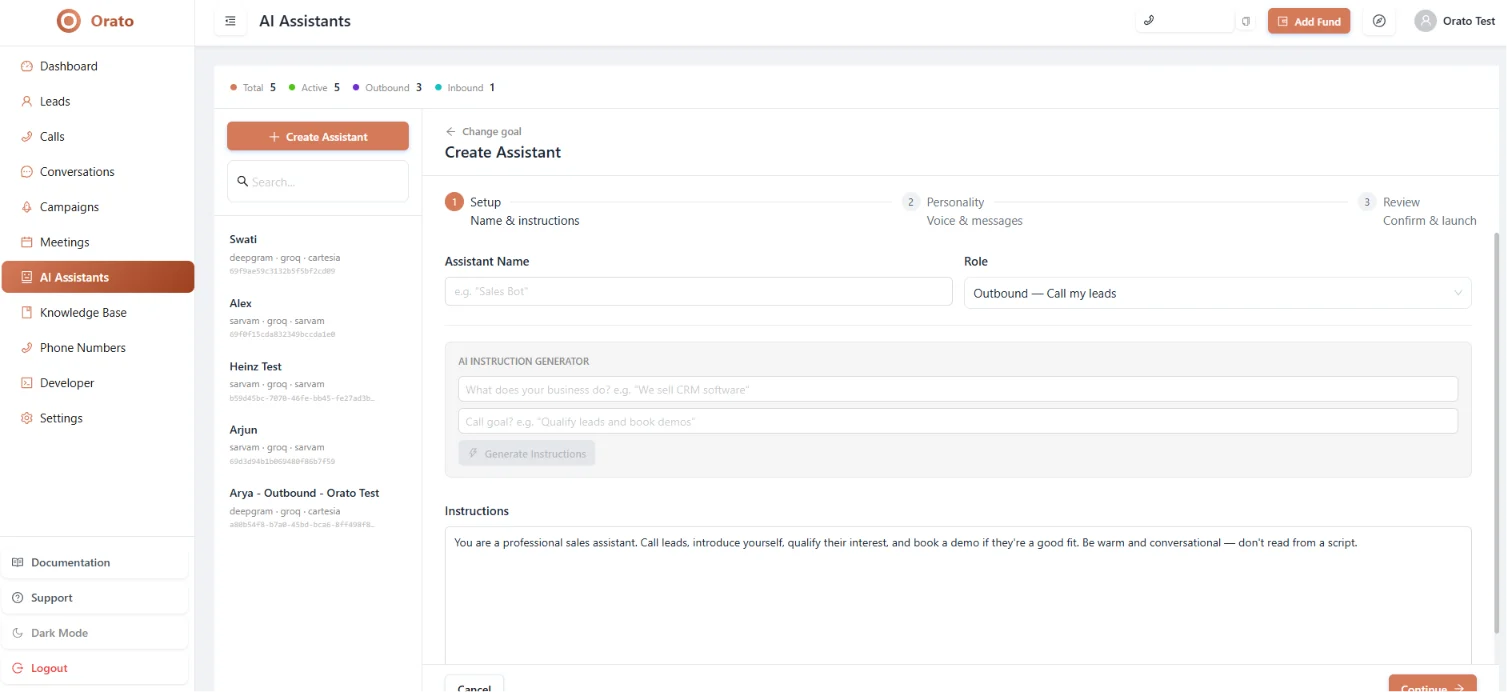
# AI Assistants
> Build and configure AI voice assistants for phone calls and web widgets. Choose your LLM, voice, and write instructions that match your business goals.
## What are AI Assistants?
AI Assistants are the core of Orato. Each assistant is a fully configured voice AI that can make phone calls, receive inbound calls, or be embedded as a voice widget on your website. You configure an assistant once and it handles unlimited simultaneous conversations.
Every assistant shows an estimated **cost per minute** - typically **\~**$0.08 -$**0.09/min** - covering Transcriber, LLM, Voice, Telephony, and Platform costs.
 ***
## Creating an AI Assistant
From the **AI Assistants** page, click **+ Create Assistant**. The creation flow has three steps.
***
### Step 1 - Setup: Name & Instructions
***
## Creating an AI Assistant
From the **AI Assistants** page, click **+ Create Assistant**. The creation flow has three steps.
***
### Step 1 - Setup: Name & Instructions
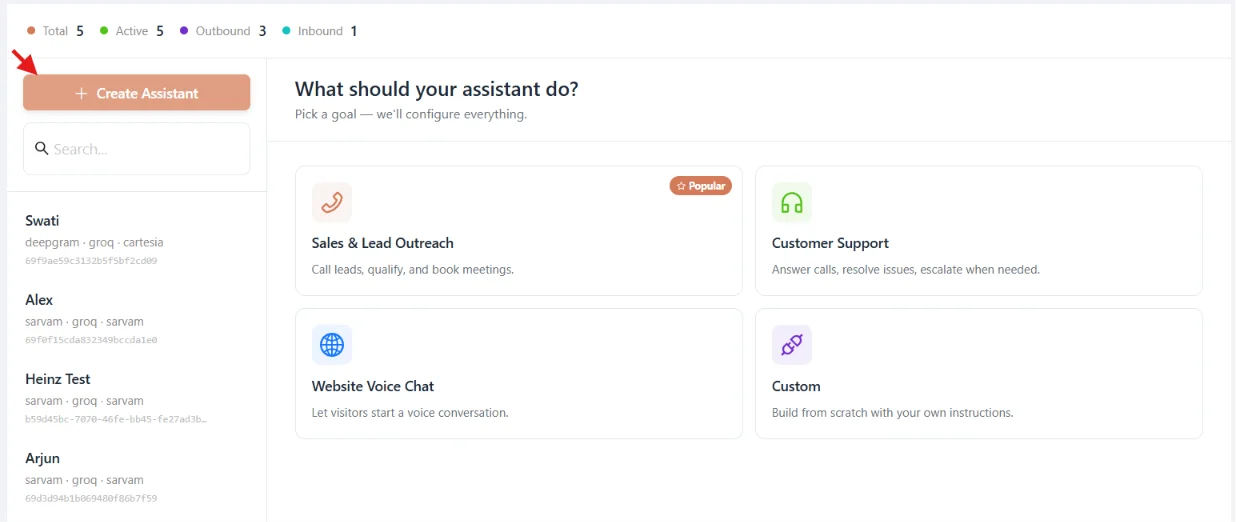 Give your assistant a name (this is what callers may hear) and choose a **Role**:
* **Web Widget** - embeds on your website as a floating voice button
* **Phone** - used for inbound or outbound phone calls
Fill in two fields to auto-generate your instructions:
1. *"What does your business do?"* - e.g. `We sell CRM software for real estate agents`
2. *"Call goal?"* - e.g. `Qualify leads and book product demos`
Click **Generate Instructions**: Orato writes a structured prompt for you instantly.
The generator creates a professional format with `# IDENTITY`, `# CRITICAL RULE: VOICE-FIRST RESPONSES`, and your custom context. Edit any section directly in the text area.
The generated prompt enforces voice-first rules automatically:
```text theme={null}
# IDENTITY
You are [Name], an AI Voice Assistant for [Company].
You're warm, professional, and concise.
# CRITICAL RULE: VOICE-FIRST RESPONSES
Every response must be 1-2 sentences maximum.
Never use bullet points, asterisks, or emojis.
Sound like a confident, helpful human.
```
Keep responses short. Voice replies over 2–3 sentences sound unnatural on a real phone call.
***
### Step 2 - Personality: Voice & Messages
Give your assistant a name (this is what callers may hear) and choose a **Role**:
* **Web Widget** - embeds on your website as a floating voice button
* **Phone** - used for inbound or outbound phone calls
Fill in two fields to auto-generate your instructions:
1. *"What does your business do?"* - e.g. `We sell CRM software for real estate agents`
2. *"Call goal?"* - e.g. `Qualify leads and book product demos`
Click **Generate Instructions**: Orato writes a structured prompt for you instantly.
The generator creates a professional format with `# IDENTITY`, `# CRITICAL RULE: VOICE-FIRST RESPONSES`, and your custom context. Edit any section directly in the text area.
The generated prompt enforces voice-first rules automatically:
```text theme={null}
# IDENTITY
You are [Name], an AI Voice Assistant for [Company].
You're warm, professional, and concise.
# CRITICAL RULE: VOICE-FIRST RESPONSES
Every response must be 1-2 sentences maximum.
Never use bullet points, asterisks, or emojis.
Sound like a confident, helpful human.
```
Keep responses short. Voice replies over 2–3 sentences sound unnatural on a real phone call.
***
### Step 2 - Personality: Voice & Messages
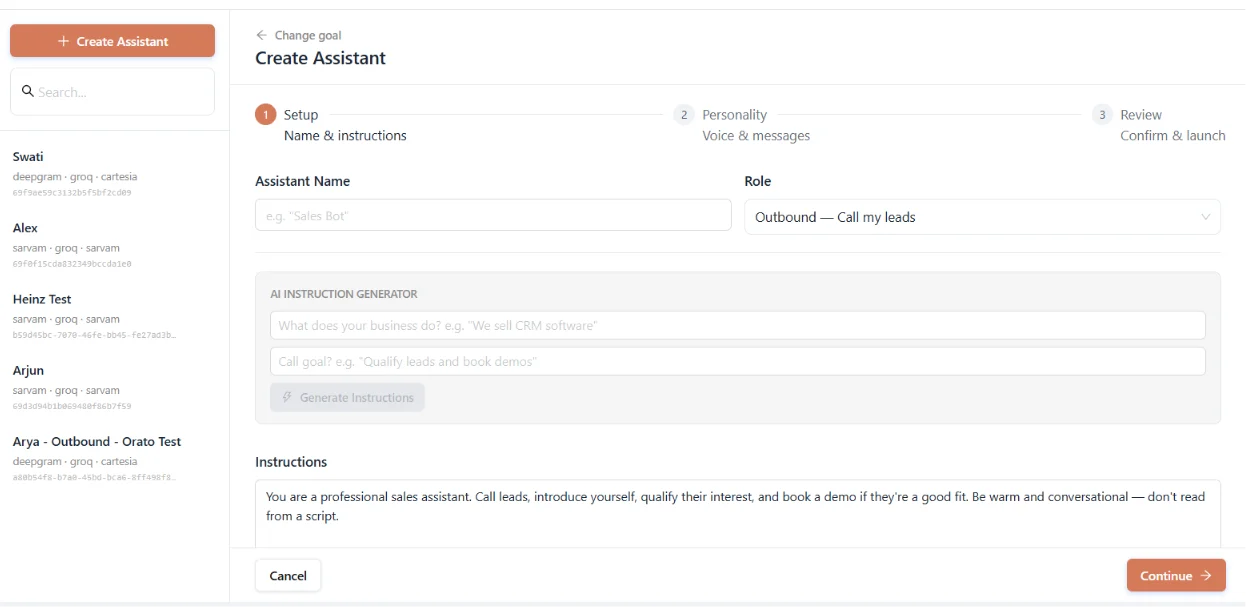 Select the language model that powers your assistant's responses:
Claude models: nuanced, high-quality responses. Best for complex conversations that need careful reasoning.
Llama 3.3 70B and others: ultra-fast inference. **Best for low-latency phone calls** where speed matters most.
GPT-4 models: balanced speed and intelligence. Good all-round choice.
Select how your assistant sounds on every call:
sonic-2 and other models: low latency, natural voices. **Recommended for most use cases.** Click **Preview** to hear before selecting.
Highly natural, wide voice selection. Best when voice quality is the top priority.
Specialised for Indian languages: Hindi, Hinglish, and Indian English accents. Best for India-based businesses.
| Setting | Description |
| ---------------------------- | -------------------------------------------------------------------------------- |
| **Opening: I'll write it** | Write a specific greeting, e.g. *"Hi, this is Arya from Orato, how can I help?"* |
| **Opening: AI generates it** | Orato crafts a natural opening based on caller name and context |
| **Session End Message** | Spoken when the conversation closes, e.g. *"Thanks for your time"* |
***
### Step 3 - Review: Confirm & Launch
Select the language model that powers your assistant's responses:
Claude models: nuanced, high-quality responses. Best for complex conversations that need careful reasoning.
Llama 3.3 70B and others: ultra-fast inference. **Best for low-latency phone calls** where speed matters most.
GPT-4 models: balanced speed and intelligence. Good all-round choice.
Select how your assistant sounds on every call:
sonic-2 and other models: low latency, natural voices. **Recommended for most use cases.** Click **Preview** to hear before selecting.
Highly natural, wide voice selection. Best when voice quality is the top priority.
Specialised for Indian languages: Hindi, Hinglish, and Indian English accents. Best for India-based businesses.
| Setting | Description |
| ---------------------------- | -------------------------------------------------------------------------------- |
| **Opening: I'll write it** | Write a specific greeting, e.g. *"Hi, this is Arya from Orato, how can I help?"* |
| **Opening: AI generates it** | Orato crafts a natural opening based on caller name and context |
| **Session End Message** | Spoken when the conversation closes, e.g. *"Thanks for your time"* |
***
### Step 3 - Review: Confirm & Launch
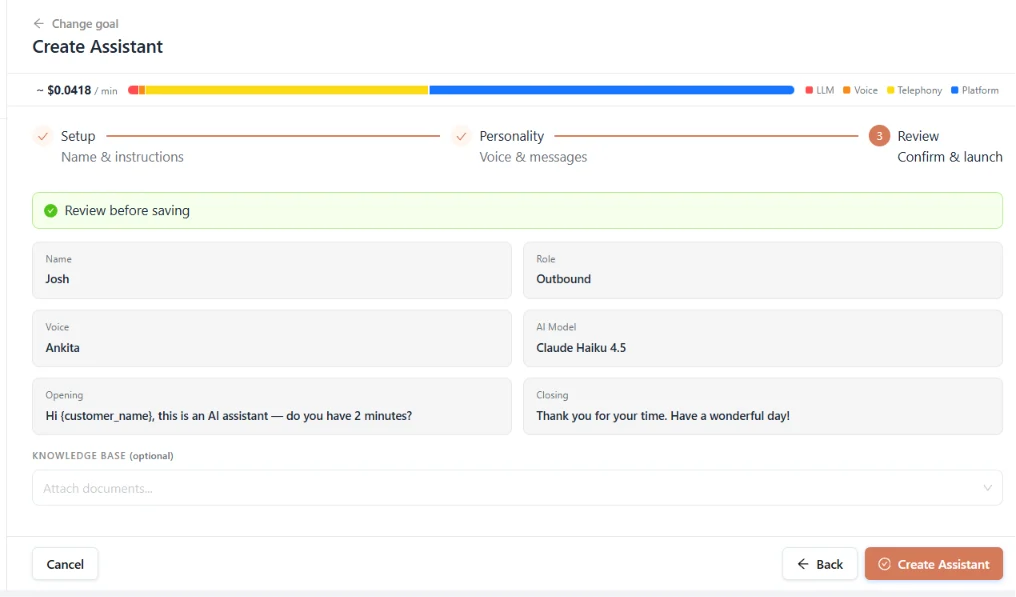 Review your complete configuration before saving:
| Field | What to check |
| ------------------ | --------------------------------------------------------------------- |
| **Name & Role** | Correct name and deployment type |
| **Voice** | Right voice for your target audience |
| **AI Model** | Correct LLM provider and model |
| **Opening** | Written or AI Generated |
| **Closing** | Session end message is set |
| **Knowledge Base** | Attach documents if your assistant needs to answer specific questions |
Click **Update Assistant** to save. Your assistant is active immediately.
Click **Talk** (top right of the Edit page) to test your assistant live in the browser before deploying to real calls.
***
## Managing your assistants
The AI Assistants page shows live stats across all your assistants:
| Stat | Meaning |
| ------------ | ----------------------------------------- |
| **Total** | All assistants in your account |
| **Active** | Currently active and taking conversations |
| **Outbound** | Configured for outbound calling campaigns |
| **Inbound** | Configured to receive incoming calls |
***
## Next steps
Upload documents your assistant can reference during calls
Use your assistant in an outbound calling campaign
Buy a number to use your assistant for inbound calls
Embed your assistant on your website via the Web Widget
Review your complete configuration before saving:
| Field | What to check |
| ------------------ | --------------------------------------------------------------------- |
| **Name & Role** | Correct name and deployment type |
| **Voice** | Right voice for your target audience |
| **AI Model** | Correct LLM provider and model |
| **Opening** | Written or AI Generated |
| **Closing** | Session end message is set |
| **Knowledge Base** | Attach documents if your assistant needs to answer specific questions |
Click **Update Assistant** to save. Your assistant is active immediately.
Click **Talk** (top right of the Edit page) to test your assistant live in the browser before deploying to real calls.
***
## Managing your assistants
The AI Assistants page shows live stats across all your assistants:
| Stat | Meaning |
| ------------ | ----------------------------------------- |
| **Total** | All assistants in your account |
| **Active** | Currently active and taking conversations |
| **Outbound** | Configured for outbound calling campaigns |
| **Inbound** | Configured to receive incoming calls |
***
## Next steps
Upload documents your assistant can reference during calls
Use your assistant in an outbound calling campaign
Buy a number to use your assistant for inbound calls
Embed your assistant on your website via the Web Widget