> ## Documentation Index
> Fetch the complete documentation index at: https://docs.tryorato.com/llms.txt
> Use this file to discover all available pages before exploring further.
# Calls
> View, monitor, and manage all calls made by your AI Assistants - outbound campaigns, inbound calls, and real-time activity.
## Overview
The **Calls** section is your central log of every call made or received by your AI Assistants. Track real-time activity, review completed calls, and analyse performance metrics all in one place.
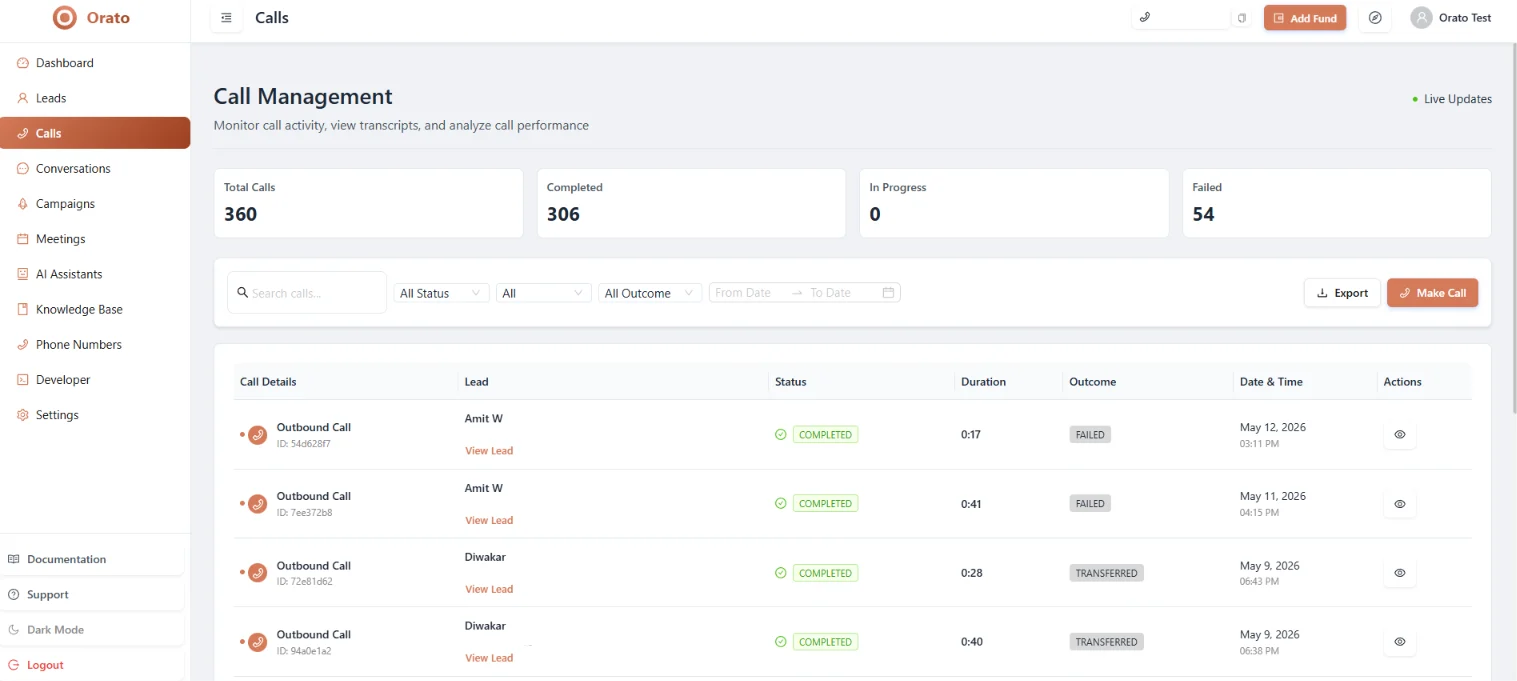 The main dashboard shows:
Number of calls that connected and completed successfully today
Total minutes of calls made today
Percentage of calls that resulted in a qualified lead or desired outcome
Live view — calls per minute, active calls right now, and today's total minutes
***
## Call types
Orato handles two types of calls:
Outbound calls are made **by your AI Assistant** to contacts in a Lead Batch, triggered through a Campaign.
* Initiated automatically when a Campaign is running
* Can also be triggered manually from the dashboard
* Uses the phone number assigned to the assistant as the caller ID
**Common use cases:** Lead qualification, appointment reminders, payment follow-ups, sales outreach
Inbound calls are received **by your AI Assistant** when someone dials your Orato phone number.
* Requires a phone number purchased from the Phone Numbers section
* The assistant answers immediately - no hold time
* Available 24/7, handles unlimited simultaneous calls
**Common use cases:** Customer support, lead intake, appointment booking hotlines
***
## Real-time monitoring
The **Real-time** panel on the dashboard shows live call activity:
| Metric | What it means |
| ------------------- | ------------------------------------------------------------ |
| **Calls/min** | Current call rate - how many calls are being made per minute |
| **Current Hour** | Number of calls in the current hour |
| **Active Calls** | Calls connected and in progress right now |
| **Today's Minutes** | Total billable minutes used today |
The real-time panel updates live. Use it to monitor active campaigns and ensure calls are progressing as expected.
***
## Monthly call statistics
The monthly stats panel shows a broader view of your calling performance:
| Metric | Description |
| ---------------- | -------------------------------------------------- |
| **Attempts** | Total call attempts made this month |
| **Connected** | Calls that successfully connected |
| **Completed** | Calls that ran to completion |
| **Success Rate** | Percentage of attempts that completed successfully |
***
## Call usage and billing
The **Call Usage Statistics** section shows your consumption against your plan:
Percentage of call attempts that actually connected to a live person
Total number of calls that connected (all time)
Total minutes consumed — shown with your remaining minute balance
***
## Call outcomes
Every call is tagged with an outcome after it ends. View outcome breakdowns in the **Call Outcomes** chart:
| Outcome | Meaning |
| ------------------ | --------------------------------------------------- |
| **Qualified** | Lead met the qualification criteria during the call |
| **Not Interested** | Lead explicitly declined |
| **No Answer** | Call rang but wasn't picked up |
| **Voicemail** | Call reached voicemail |
| **Busy** | Line was busy at time of call |
| **Failed** | Call could not be connected |
***
## Call history
To view individual call records, go to **Conversations** — where every call has a full transcript, duration, outcome, and recording available.
Access full transcripts, recordings, and outcomes for every call
***
## Adding funds
Call usage is prepaid. When your balance runs low, click **Add Fund** in the top navigation bar to top up your account.
The main dashboard shows:
Number of calls that connected and completed successfully today
Total minutes of calls made today
Percentage of calls that resulted in a qualified lead or desired outcome
Live view — calls per minute, active calls right now, and today's total minutes
***
## Call types
Orato handles two types of calls:
Outbound calls are made **by your AI Assistant** to contacts in a Lead Batch, triggered through a Campaign.
* Initiated automatically when a Campaign is running
* Can also be triggered manually from the dashboard
* Uses the phone number assigned to the assistant as the caller ID
**Common use cases:** Lead qualification, appointment reminders, payment follow-ups, sales outreach
Inbound calls are received **by your AI Assistant** when someone dials your Orato phone number.
* Requires a phone number purchased from the Phone Numbers section
* The assistant answers immediately - no hold time
* Available 24/7, handles unlimited simultaneous calls
**Common use cases:** Customer support, lead intake, appointment booking hotlines
***
## Real-time monitoring
The **Real-time** panel on the dashboard shows live call activity:
| Metric | What it means |
| ------------------- | ------------------------------------------------------------ |
| **Calls/min** | Current call rate - how many calls are being made per minute |
| **Current Hour** | Number of calls in the current hour |
| **Active Calls** | Calls connected and in progress right now |
| **Today's Minutes** | Total billable minutes used today |
The real-time panel updates live. Use it to monitor active campaigns and ensure calls are progressing as expected.
***
## Monthly call statistics
The monthly stats panel shows a broader view of your calling performance:
| Metric | Description |
| ---------------- | -------------------------------------------------- |
| **Attempts** | Total call attempts made this month |
| **Connected** | Calls that successfully connected |
| **Completed** | Calls that ran to completion |
| **Success Rate** | Percentage of attempts that completed successfully |
***
## Call usage and billing
The **Call Usage Statistics** section shows your consumption against your plan:
Percentage of call attempts that actually connected to a live person
Total number of calls that connected (all time)
Total minutes consumed — shown with your remaining minute balance
***
## Call outcomes
Every call is tagged with an outcome after it ends. View outcome breakdowns in the **Call Outcomes** chart:
| Outcome | Meaning |
| ------------------ | --------------------------------------------------- |
| **Qualified** | Lead met the qualification criteria during the call |
| **Not Interested** | Lead explicitly declined |
| **No Answer** | Call rang but wasn't picked up |
| **Voicemail** | Call reached voicemail |
| **Busy** | Line was busy at time of call |
| **Failed** | Call could not be connected |
***
## Call history
To view individual call records, go to **Conversations** — where every call has a full transcript, duration, outcome, and recording available.
Access full transcripts, recordings, and outcomes for every call
***
## Adding funds
Call usage is prepaid. When your balance runs low, click **Add Fund** in the top navigation bar to top up your account.