> ## Documentation Index
> Fetch the complete documentation index at: https://docs.tryorato.com/llms.txt
> Use this file to discover all available pages before exploring further.
# Call History
## Overview
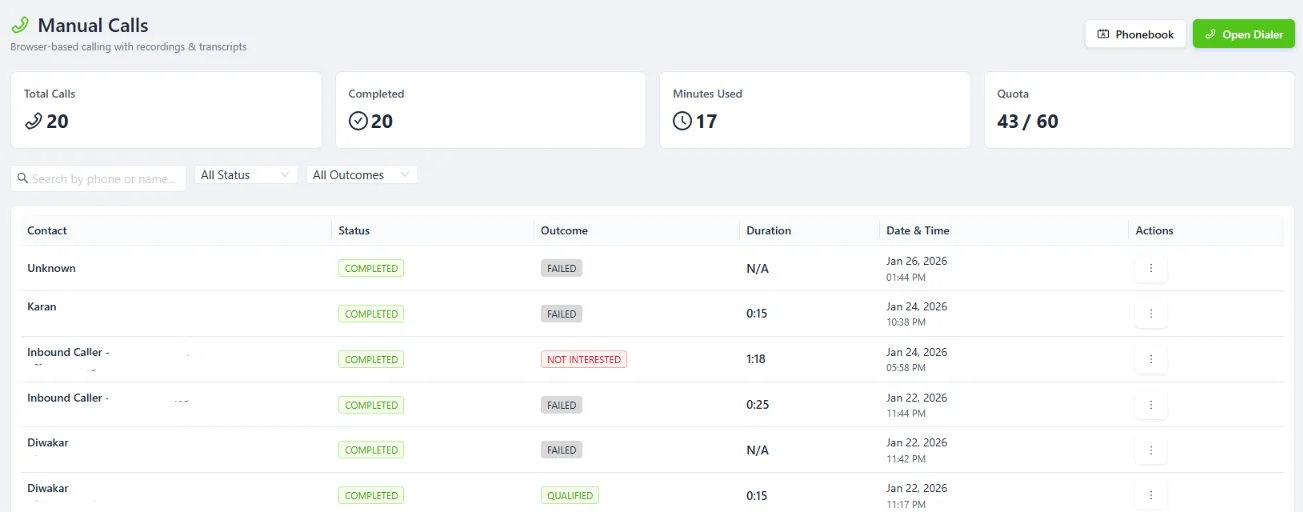
Call History is your complete record of every call that's gone through Orato. Every outbound call from a Campaign, every inbound call to your number, it's all here. You can search, filter, review transcripts, and listen to recordings from this page.
 ***
## Reading the call list
The Calls page shows every call in a table with the following columns:
| Column | What it shows |
| ---------------- | --------------------------------------------------------------------------- |
| **Call Details** | Outbound or inbound, and the phone number involved |
| **Lead** | The contact linked to this call - click **View Lead** to open their record |
| **Status** | How the call ended - Completed, Failed, Transferred, or In Progress |
| **Duration** | How long did the call last |
| **Outcome** | The result tagged by your assistant - Qualified, Dead, Not Interested, etc. |
| **Date & Time** | When the call took place |
| **Actions** | View full details, read the transcript, or listen to the recording |
***
## Filtering your call history
Use the filters at the top of the page to find exactly what you're looking for:
Filter calls by how they ended:
* **All Status**: shows everything
* **Completed**: calls that ran to a natural end
* **Failed**: calls that couldn't connect
* **Transferred**: calls your assistant, handed off to a human
* **In Progress** calls currently active (live view)
Filter by the result your assistant assigned:
* **Qualified** — contacts who met your criteria
* **Not Interested** — contacts who declined
* **Dead** — contacts who weren't reachable after multiple attempts
* Any other custom outcomes you've defined
Use the **From Date** and **To Date** pickers to view calls within a specific period. Useful for reviewing a campaign's results or pulling a monthly report.
***
## What's inside a call record
Click **Actions** on any call to open its full detail view:
A word-for-word record of everything said during the call, your assistant's lines and the caller's responses, in order, with timestamps on each turn.
The actual audio of the call. Listen back to check tone, pace, how objections were handled, and whether the assistant stuck to the script.
The outcome tagged by your assistant and an AI-written summary of the key points from the conversation.
The contact's details linked to this call. Click **View Lead** to open the full lead record and see their history across multiple calls.
Duration, timestamp, which assistant handled it, the phone number used, and whether it was inbound or outbound.
***
## Live updates
Toggle **Live Updates** (top right of the Calls page) to have the list refresh automatically as new calls come in. Useful when you're monitoring an active campaign and want to see results in real time without refreshing the page manually.
***
## Call statuses explained
| Status | Meaning |
| ------------- | ---------------------------------------------------- |
| `COMPLETED` | The call connected and ran to a natural end |
| `FAILED` | The call couldn't connect at all |
| `TRANSFERRED` | Your assistant transferred the call to a human agent |
| `IN PROGRESS` | The call is live right now |
***
## Exporting call data
Click the **Export** button at the top right of the Calls page to download your call history as a CSV. The export includes all visible columns and respects your current filters, so if you've filtered by date range or outcome, only those calls are exported.
Use exports for monthly reporting, sharing results with your team, or feeding data into a CRM or analytics tool.
***
## Where to go next
Full transcripts and recordings of every interaction
Make outbound calls from the dashboard or API
Set up your assistant to receive incoming calls
Run batch calling campaigns to your lead list
***
## Reading the call list
The Calls page shows every call in a table with the following columns:
| Column | What it shows |
| ---------------- | --------------------------------------------------------------------------- |
| **Call Details** | Outbound or inbound, and the phone number involved |
| **Lead** | The contact linked to this call - click **View Lead** to open their record |
| **Status** | How the call ended - Completed, Failed, Transferred, or In Progress |
| **Duration** | How long did the call last |
| **Outcome** | The result tagged by your assistant - Qualified, Dead, Not Interested, etc. |
| **Date & Time** | When the call took place |
| **Actions** | View full details, read the transcript, or listen to the recording |
***
## Filtering your call history
Use the filters at the top of the page to find exactly what you're looking for:
Filter calls by how they ended:
* **All Status**: shows everything
* **Completed**: calls that ran to a natural end
* **Failed**: calls that couldn't connect
* **Transferred**: calls your assistant, handed off to a human
* **In Progress** calls currently active (live view)
Filter by the result your assistant assigned:
* **Qualified** — contacts who met your criteria
* **Not Interested** — contacts who declined
* **Dead** — contacts who weren't reachable after multiple attempts
* Any other custom outcomes you've defined
Use the **From Date** and **To Date** pickers to view calls within a specific period. Useful for reviewing a campaign's results or pulling a monthly report.
***
## What's inside a call record
Click **Actions** on any call to open its full detail view:
A word-for-word record of everything said during the call, your assistant's lines and the caller's responses, in order, with timestamps on each turn.
The actual audio of the call. Listen back to check tone, pace, how objections were handled, and whether the assistant stuck to the script.
The outcome tagged by your assistant and an AI-written summary of the key points from the conversation.
The contact's details linked to this call. Click **View Lead** to open the full lead record and see their history across multiple calls.
Duration, timestamp, which assistant handled it, the phone number used, and whether it was inbound or outbound.
***
## Live updates
Toggle **Live Updates** (top right of the Calls page) to have the list refresh automatically as new calls come in. Useful when you're monitoring an active campaign and want to see results in real time without refreshing the page manually.
***
## Call statuses explained
| Status | Meaning |
| ------------- | ---------------------------------------------------- |
| `COMPLETED` | The call connected and ran to a natural end |
| `FAILED` | The call couldn't connect at all |
| `TRANSFERRED` | Your assistant transferred the call to a human agent |
| `IN PROGRESS` | The call is live right now |
***
## Exporting call data
Click the **Export** button at the top right of the Calls page to download your call history as a CSV. The export includes all visible columns and respects your current filters, so if you've filtered by date range or outcome, only those calls are exported.
Use exports for monthly reporting, sharing results with your team, or feeding data into a CRM or analytics tool.
***
## Where to go next
Full transcripts and recordings of every interaction
Make outbound calls from the dashboard or API
Set up your assistant to receive incoming calls
Run batch calling campaigns to your lead list