> ## Documentation Index
> Fetch the complete documentation index at: https://docs.tryorato.com/llms.txt
> Use this file to discover all available pages before exploring further.
# Outbound
## What is the Outbound?
Outbound calls are calls your AI Assistant makes to contacts. You can trigger a single call from the dashboard, run a campaign to call a whole lead batch at once, or integrate directly with the API to trigger calls from your own application.
 ***
## Three ways to make an outbound call
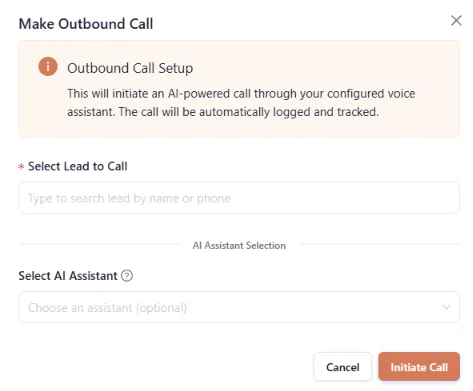
Use this when you want to call one specific person right now.
Click **Calls** in the left sidebar.
Click the orange **Make Call** button in the top right corner of the page.
Enter the recipient's phone number in international format and choose which AI Assistant should handle the call.
Click to confirm. Your assistant dials the number immediately.
Use this when you want to call a batch of leads at once.
Go to **Leads** and create a batch with the contacts you want to call. Add them manually or upload a CSV.
Go to **Campaigns**, click **+ Create Campaign**, and fill in:
* The Lead Batch you just created
* The AI Assistant to use
* Call rate: 3–8 calls per minute
* Schedule: start immediately or set a time
Click **Create Campaign**. Your assistant starts calling every contact in the batch automatically.
Keep the call rate between 3 and 8 calls per minute. Going higher can trigger spam detection on carrier networks and reduce your answer rate.
Use this when you want to trigger calls programmatically from your own application.
First, get your API key from **Developer → API Keys**. Then send a POST request:
```bash theme={null}
curl --request POST \
--url https://api.tryorato.com/v1/call \
--header 'Authorization: Bearer YOUR_API_KEY' \
--header 'Content-Type: application/json' \
--data '{
"assistant_id": "your-assistant-id",
"recipient_phone_number": "+911234567890"
}'
```
The call fires immediately. You'll get back a `call_id` you can use to check its status.
***
## What you see in the call list
Every outbound call shows up in the **Calls** page with these details:
| Column | Description |
| ---------------- | --------------------------------------------------------------------- |
| **Call Details** | Whether it was outbound or inbound, and the phone number |
| **Lead** | The contact associated with this call, with a **View Lead** link |
| **Status** | `COMPLETED`, `IN PROGRESS`, `FAILED`, or `TRANSFERRED` |
| **Duration** | How long did the call last |
| **Outcome** | The result of the call is tagged by your assistant |
| **Date & Time** | When the call happened |
| **Actions** | Options to view details, read the transcript, or replay the recording |
### Filtering the call list
Use the filters at the top of the page to narrow down what you're looking at:
* **All Status**: filter by Completed, Failed, In Progress, or Transferred
* **All Outcome**: filter by Qualified, Not Interested, Dead, etc.
* **From Date / To Date**: filter by a date range
Toggle **Live Updates** to automatically refresh the list as new calls come in during an active campaign.
***
## Call statuses
| Status | What it means |
| ------------- | ---------------------------------------------------- |
| `COMPLETED` | The call connected and ran to a natural end |
| `IN PROGRESS` | The call is happening right now |
| `FAILED` | The call couldn't connect |
| `TRANSFERRED` | Your assistant transferred the call to a human agent |
***
## Things to know
Outbound calls require a phone number in your account. If you haven't bought one yet, go to **Phone Numbers** and complete the compliance process first.
Only call contacts who have given consent to be contacted. Automated outbound calls are regulated under TCPA in the US and TRAI in India.
***
## Where to go next
Call your entire lead list automatically
Review transcripts and recordings of past calls
Set up your assistant to receive incoming calls
Get a number for outbound calling
***
## Three ways to make an outbound call
Use this when you want to call one specific person right now.
Click **Calls** in the left sidebar.
Click the orange **Make Call** button in the top right corner of the page.
Enter the recipient's phone number in international format and choose which AI Assistant should handle the call.
Click to confirm. Your assistant dials the number immediately.
Use this when you want to call a batch of leads at once.
Go to **Leads** and create a batch with the contacts you want to call. Add them manually or upload a CSV.
Go to **Campaigns**, click **+ Create Campaign**, and fill in:
* The Lead Batch you just created
* The AI Assistant to use
* Call rate: 3–8 calls per minute
* Schedule: start immediately or set a time
Click **Create Campaign**. Your assistant starts calling every contact in the batch automatically.
Keep the call rate between 3 and 8 calls per minute. Going higher can trigger spam detection on carrier networks and reduce your answer rate.
Use this when you want to trigger calls programmatically from your own application.
First, get your API key from **Developer → API Keys**. Then send a POST request:
```bash theme={null}
curl --request POST \
--url https://api.tryorato.com/v1/call \
--header 'Authorization: Bearer YOUR_API_KEY' \
--header 'Content-Type: application/json' \
--data '{
"assistant_id": "your-assistant-id",
"recipient_phone_number": "+911234567890"
}'
```
The call fires immediately. You'll get back a `call_id` you can use to check its status.
***
## What you see in the call list
Every outbound call shows up in the **Calls** page with these details:
| Column | Description |
| ---------------- | --------------------------------------------------------------------- |
| **Call Details** | Whether it was outbound or inbound, and the phone number |
| **Lead** | The contact associated with this call, with a **View Lead** link |
| **Status** | `COMPLETED`, `IN PROGRESS`, `FAILED`, or `TRANSFERRED` |
| **Duration** | How long did the call last |
| **Outcome** | The result of the call is tagged by your assistant |
| **Date & Time** | When the call happened |
| **Actions** | Options to view details, read the transcript, or replay the recording |
### Filtering the call list
Use the filters at the top of the page to narrow down what you're looking at:
* **All Status**: filter by Completed, Failed, In Progress, or Transferred
* **All Outcome**: filter by Qualified, Not Interested, Dead, etc.
* **From Date / To Date**: filter by a date range
Toggle **Live Updates** to automatically refresh the list as new calls come in during an active campaign.
***
## Call statuses
| Status | What it means |
| ------------- | ---------------------------------------------------- |
| `COMPLETED` | The call connected and ran to a natural end |
| `IN PROGRESS` | The call is happening right now |
| `FAILED` | The call couldn't connect |
| `TRANSFERRED` | Your assistant transferred the call to a human agent |
***
## Things to know
Outbound calls require a phone number in your account. If you haven't bought one yet, go to **Phone Numbers** and complete the compliance process first.
Only call contacts who have given consent to be contacted. Automated outbound calls are regulated under TCPA in the US and TRAI in India.
***
## Where to go next
Call your entire lead list automatically
Review transcripts and recordings of past calls
Set up your assistant to receive incoming calls
Get a number for outbound calling