> ## Documentation Index
> Fetch the complete documentation index at: https://docs.tryorato.com/llms.txt
> Use this file to discover all available pages before exploring further.
# Campaigns
> Launch outbound calling campaigns to your lead batches. Assign an AI Assistant, set call rate, and monitor progress in real time.
## Overview
A Campaign is how you put your AI Assistant to work at scale. You pick a Lead Batch, assign an assistant, and Orato calls every contact in that list automatically — logging outcomes, transcripts, and qualified leads as it goes.
 ***
## The campaigns dashboard
Four numbers are shown at the top:
Every campaign you've ever created
Campaigns running right now
All calls made across every campaign
Contacts marked as qualified by your assistant
### Campaign status
| Status | What it means |
| ----------- | ------------------------------------------ |
| `Running` | The campaign is actively making calls |
| `Completed` | Every contact in the batch has been called |
| `Cancelled` | The campaign was stopped before finishing |
***
## Creating a campaign
Click **+ Create Campaign** in the top right of the Campaigns page.
***
## The campaigns dashboard
Four numbers are shown at the top:
Every campaign you've ever created
Campaigns running right now
All calls made across every campaign
Contacts marked as qualified by your assistant
### Campaign status
| Status | What it means |
| ----------- | ------------------------------------------ |
| `Running` | The campaign is actively making calls |
| `Completed` | Every contact in the batch has been called |
| `Cancelled` | The campaign was stopped before finishing |
***
## Creating a campaign
Click **+ Create Campaign** in the top right of the Campaigns page.
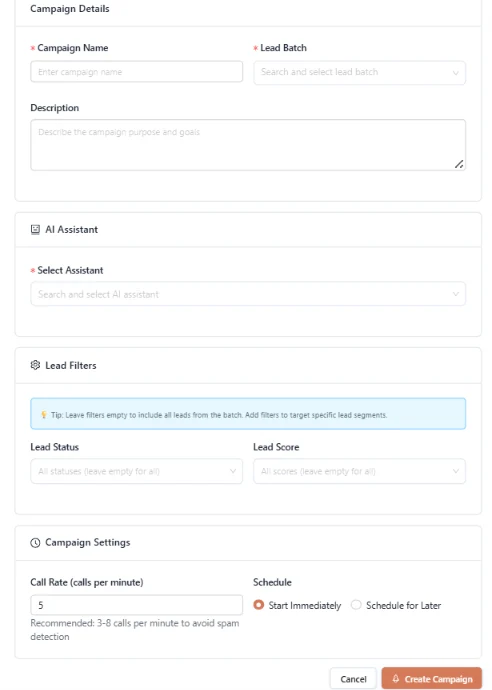 | Field | What to enter |
| ----------------- | --------------------------------------------------------- |
| **Campaign Name** | Something clear — e.g. *"June Outreach — Property Leads"* |
| **Lead Batch** | The batch of contacts you want to call |
| **Description** | Optional notes about what this campaign is for |
Pick which assistant handles the calls. Make sure the assistant's instructions match the type of leads you're calling.
An assistant set up for lead qualification will behave very differently from one set up for payment reminders. Use the right one for the job.
If you don't want to call every contact in the batch, narrow it down:
* **Lead Status**: only call contacts with a specific status (e.g. new leads only)
* **Lead Score**: only call contacts above a certain score
Leave both empty to call the entire batch.
As the dashboard says: *"Leave filters empty to include all leads from the batch. Add filters to target specific lead segments."*
| Setting | Guidance |
| ------------------------- | --------------------------------------------------------------------------------------------------------------------------------- |
| **Call Rate (calls/min)** | Keep it between **3 and 8 calls per minute**. Going higher risks triggering spam detection on carrier networks. The default is 5. |
| **Start Immediately** | Campaign begins the moment you click Create |
| **Schedule for Later** | Set a specific date and time to start |
Don't set the call rate above 8 calls per minute. It won't get you results faster — it'll just get your number flagged as spam.
That's it. If you chose Start Immediately, your assistant starts dialling straight away.
***
## Monitoring a live campaign
Click any campaign to open its detail view:
* **Progress bar**: how many contacts have been called versus how many are left
* **Results**: a breakdown of outcomes (connected, no answer, qualified, failed)
* **Individual calls**: click through to read the transcript of any specific call
***
## Before you launch
A Lead Batch exists with valid phone numbers in international format
Your AI Assistant is configured and tested with the Talk button
The calling hours are appropriate for your contacts' time zone
Your account has enough balance — check by clicking Add Fund in the top nav
***
## Where to go next
Create a Lead Batch if you haven't already
Configure the assistant that will make the calls
Review call transcripts and outcomes after the campaign runs
Monitor real-time activity and usage during the campaign
| Field | What to enter |
| ----------------- | --------------------------------------------------------- |
| **Campaign Name** | Something clear — e.g. *"June Outreach — Property Leads"* |
| **Lead Batch** | The batch of contacts you want to call |
| **Description** | Optional notes about what this campaign is for |
Pick which assistant handles the calls. Make sure the assistant's instructions match the type of leads you're calling.
An assistant set up for lead qualification will behave very differently from one set up for payment reminders. Use the right one for the job.
If you don't want to call every contact in the batch, narrow it down:
* **Lead Status**: only call contacts with a specific status (e.g. new leads only)
* **Lead Score**: only call contacts above a certain score
Leave both empty to call the entire batch.
As the dashboard says: *"Leave filters empty to include all leads from the batch. Add filters to target specific lead segments."*
| Setting | Guidance |
| ------------------------- | --------------------------------------------------------------------------------------------------------------------------------- |
| **Call Rate (calls/min)** | Keep it between **3 and 8 calls per minute**. Going higher risks triggering spam detection on carrier networks. The default is 5. |
| **Start Immediately** | Campaign begins the moment you click Create |
| **Schedule for Later** | Set a specific date and time to start |
Don't set the call rate above 8 calls per minute. It won't get you results faster — it'll just get your number flagged as spam.
That's it. If you chose Start Immediately, your assistant starts dialling straight away.
***
## Monitoring a live campaign
Click any campaign to open its detail view:
* **Progress bar**: how many contacts have been called versus how many are left
* **Results**: a breakdown of outcomes (connected, no answer, qualified, failed)
* **Individual calls**: click through to read the transcript of any specific call
***
## Before you launch
A Lead Batch exists with valid phone numbers in international format
Your AI Assistant is configured and tested with the Talk button
The calling hours are appropriate for your contacts' time zone
Your account has enough balance — check by clicking Add Fund in the top nav
***
## Where to go next
Create a Lead Batch if you haven't already
Configure the assistant that will make the calls
Review call transcripts and outcomes after the campaign runs
Monitor real-time activity and usage during the campaign