> ## Documentation Index
> Fetch the complete documentation index at: https://docs.tryorato.com/llms.txt
> Use this file to discover all available pages before exploring further.
# Conversations
> Review every voice call and chat interaction handled by your AI Assistants — with duration, outcome, summary, and full transcript.
## Overview
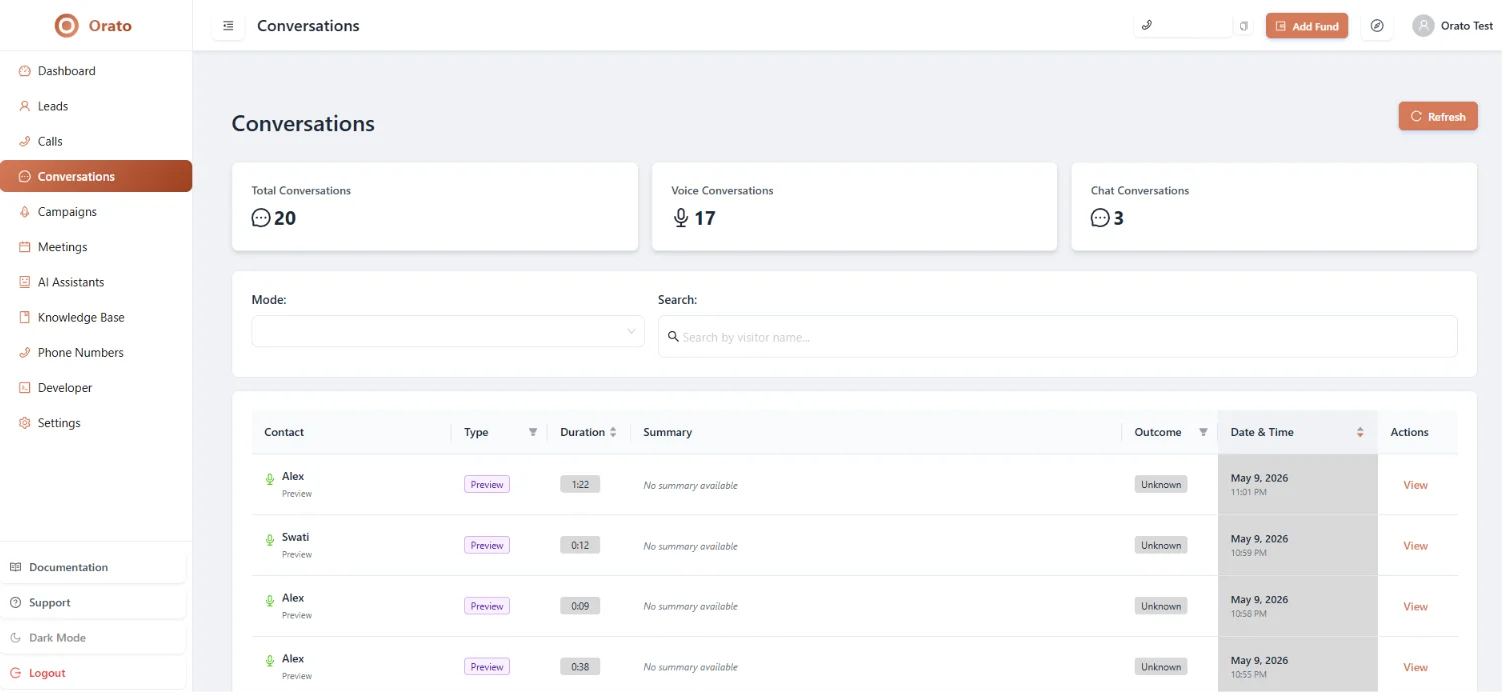
Every time your AI Assistant has a conversation, whether it's a phone call or a web widget chat, it's automatically logged in **Conversations**. You don't need to do anything. Just come here when you want to review what happened.
 ***
## Voice and chat, in one place
Orato logs two types of conversations:
Phone calls handled by your AI Assistant, both inbound calls to your number and outbound calls from Campaigns.
Each voice conversation logs: contact name, call duration, an AI-written summary, the outcome, the date and time, and a full transcript with a recording.
Text conversations through your embedded Web Widget. When a visitor types instead of speaking, it's logged here as a Chat conversation.
Chat conversations have the same fields as voice - contact, duration, summary, outcome, and a full message transcript.
The three stats at the top give you a quick snapshot:
| Stat | What it shows |
| ----------------------- | ---------------------------- |
| **Total Conversations** | Voice and chat combined |
| **Voice Conversations** | Phone calls only |
| **Chat Conversations** | Web widget interactions only |
***
## Reading the table
***
## Voice and chat, in one place
Orato logs two types of conversations:
Phone calls handled by your AI Assistant, both inbound calls to your number and outbound calls from Campaigns.
Each voice conversation logs: contact name, call duration, an AI-written summary, the outcome, the date and time, and a full transcript with a recording.
Text conversations through your embedded Web Widget. When a visitor types instead of speaking, it's logged here as a Chat conversation.
Chat conversations have the same fields as voice - contact, duration, summary, outcome, and a full message transcript.
The three stats at the top give you a quick snapshot:
| Stat | What it shows |
| ----------------------- | ---------------------------- |
| **Total Conversations** | Voice and chat combined |
| **Voice Conversations** | Phone calls only |
| **Chat Conversations** | Web widget interactions only |
***
## Reading the table
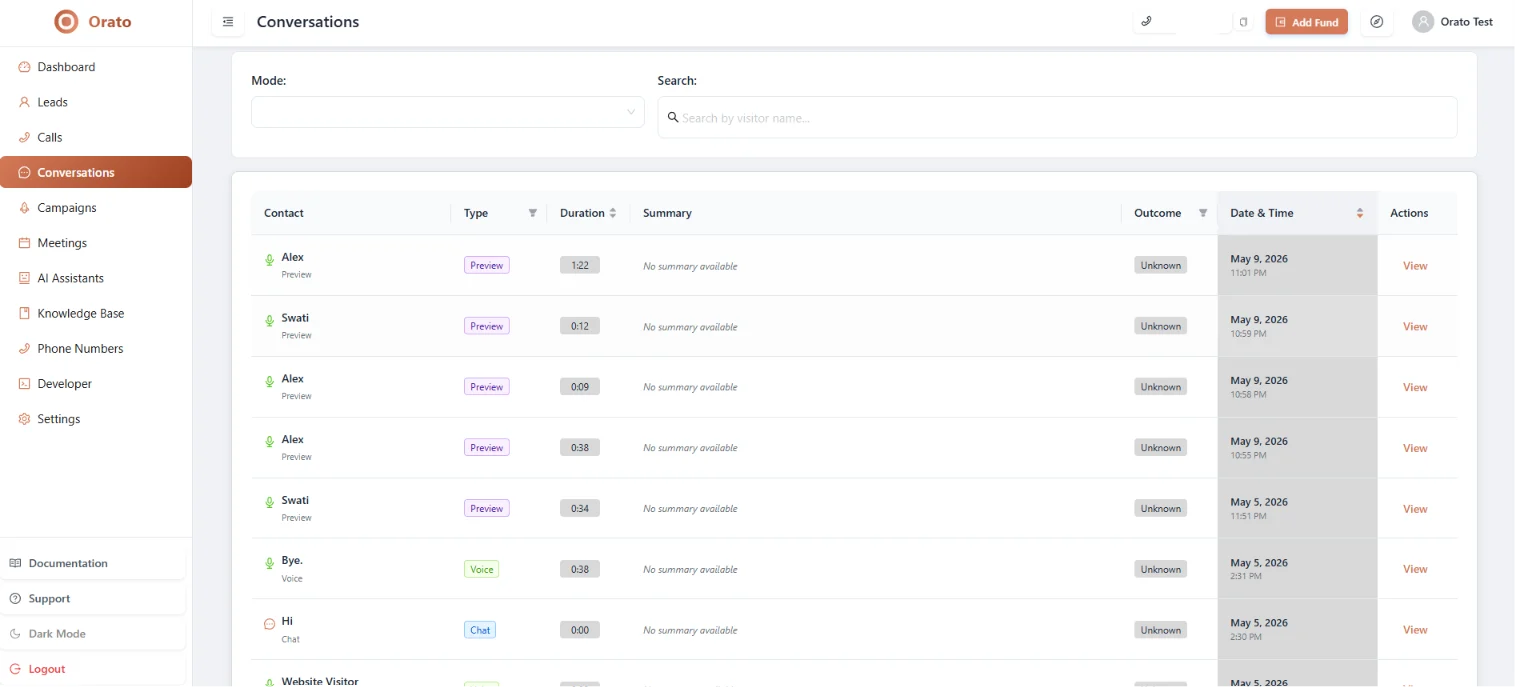 | Column | Description |
| --------------- | --------------------------------------------------------------------- |
| **Contact** | The person your assistant spoke with |
| **Type** | Voice or Chat |
| **Duration** | How long the conversation lasted in minutes and seconds |
| **Summary** | A short AI-written summary of what was discussed |
| **Outcome** | How the conversation ended — Qualified, Unknown, Not Interested, etc. |
| **Date & Time** | When it happened |
| **Actions** | Click **View** to open the full conversation detail |
To find a specific conversation, use the **Mode** filter to switch between Voice and Chat, or type a contact name in the **Search** bar.
***
## What's inside a conversation
Click **View** on any row to open its full detail page:
A word-for-word log of the entire conversation with speaker labels. Both what your assistant said and what the caller said, in order, with timestamps.
The actual audio recording of the call. Listen back for quality checks, coaching, or compliance.
A short paragraph written by Orato that captures the key points of the conversation — useful when you need context quickly without reading everything.
The result of the conversation as determined by your assistant — based on the criteria you defined in its instructions.
The contact's information, which assistant handled it, duration, source (campaign name or inbound number), and the exact timestamp.
***
## What outcomes mean
| Outcome | What happened during the call |
| ------------------ | ----------------------------------------------------- |
| **Qualified** | The contact met the criteria your assistant was given |
| **Not Interested** | They declined or said they weren't interested |
| **Unknown** | The conversation ended without a clear outcome |
| **Booked** | A meeting or appointment was scheduled |
| **Follow-up** | The contact wants to be reached again later |
If you're seeing a lot of "Unknown" outcomes, your assistant's instructions probably don't define clearly enough when to mark someone as qualified. Add a line like: *"If the contact confirms a budget over ₹50,000 and asks to proceed, they are qualified."*
***
## How to actually use this data
Read through transcripts to find moments where your assistant misunderstood a caller or gave a bad response. Update the instructions to fix it.
Listen to recordings to make sure your assistant is representing your brand the way you want — especially when you first go live.
Filter by date to measure how a specific campaign performed. Look at outcome rates, average call duration, and what's causing drops.
Any meetings booked during a conversation automatically show up in the Meetings section — no manual logging needed.
***
## Where to go next
See meetings that were booked during conversations
Launch a campaign to generate more conversations
| Column | Description |
| --------------- | --------------------------------------------------------------------- |
| **Contact** | The person your assistant spoke with |
| **Type** | Voice or Chat |
| **Duration** | How long the conversation lasted in minutes and seconds |
| **Summary** | A short AI-written summary of what was discussed |
| **Outcome** | How the conversation ended — Qualified, Unknown, Not Interested, etc. |
| **Date & Time** | When it happened |
| **Actions** | Click **View** to open the full conversation detail |
To find a specific conversation, use the **Mode** filter to switch between Voice and Chat, or type a contact name in the **Search** bar.
***
## What's inside a conversation
Click **View** on any row to open its full detail page:
A word-for-word log of the entire conversation with speaker labels. Both what your assistant said and what the caller said, in order, with timestamps.
The actual audio recording of the call. Listen back for quality checks, coaching, or compliance.
A short paragraph written by Orato that captures the key points of the conversation — useful when you need context quickly without reading everything.
The result of the conversation as determined by your assistant — based on the criteria you defined in its instructions.
The contact's information, which assistant handled it, duration, source (campaign name or inbound number), and the exact timestamp.
***
## What outcomes mean
| Outcome | What happened during the call |
| ------------------ | ----------------------------------------------------- |
| **Qualified** | The contact met the criteria your assistant was given |
| **Not Interested** | They declined or said they weren't interested |
| **Unknown** | The conversation ended without a clear outcome |
| **Booked** | A meeting or appointment was scheduled |
| **Follow-up** | The contact wants to be reached again later |
If you're seeing a lot of "Unknown" outcomes, your assistant's instructions probably don't define clearly enough when to mark someone as qualified. Add a line like: *"If the contact confirms a budget over ₹50,000 and asks to proceed, they are qualified."*
***
## How to actually use this data
Read through transcripts to find moments where your assistant misunderstood a caller or gave a bad response. Update the instructions to fix it.
Listen to recordings to make sure your assistant is representing your brand the way you want — especially when you first go live.
Filter by date to measure how a specific campaign performed. Look at outcome rates, average call duration, and what's causing drops.
Any meetings booked during a conversation automatically show up in the Meetings section — no manual logging needed.
***
## Where to go next
See meetings that were booked during conversations
Launch a campaign to generate more conversations