> ## Documentation Index
> Fetch the complete documentation index at: https://docs.tryorato.com/llms.txt
> Use this file to discover all available pages before exploring further.
# Knowledge Base
## Overview
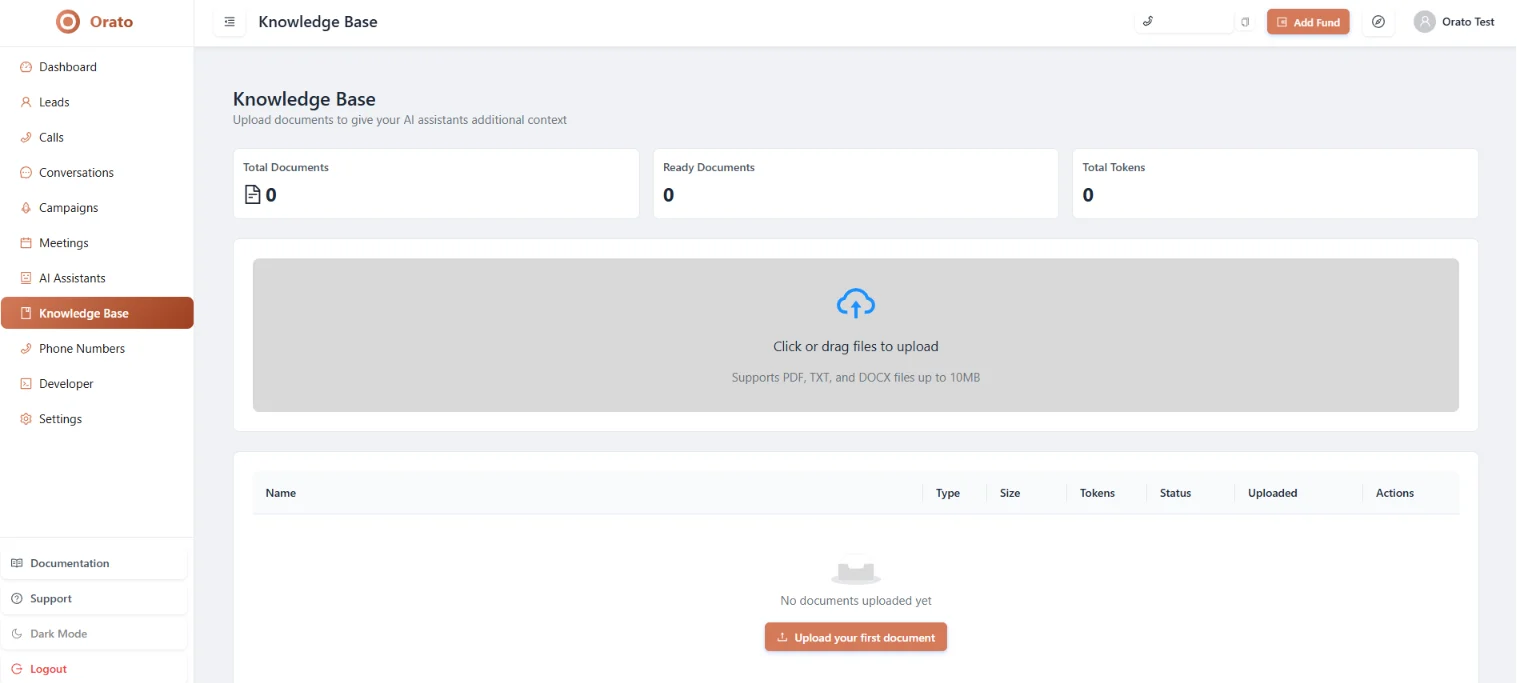
The **Knowledge Base** is a library of documents your AI Assistants can search and reference during live conversations. When a caller asks a question your assistant can't answer from its instructions alone, it looks up the relevant information in your uploaded documents and uses it in its response.
 ***
## Supported file types
Product docs, brochures, pricing sheets, compliance policies **up to 10MB**
Plain text FAQs, scripts, call guides, response templates **up to 10MB**
Word documents, SOPs, training material, company policies **up to 10MB**
The maximum file size is **10MB per document**. If your file is larger, split it into smaller, focused sections before uploading.
***
## Uploading a document
Click **Knowledge Base** in the left sidebar.
Either:
* **Drag and drop** your file onto the upload area
* **Click** the upload area to open a file picker and select your file
Supported formats: PDF, TXT, DOCX up to 10MB.
After uploading, Orato processes your document, extracting and indexing its content. The status changes from `Processing` to `Ready`.
Processing takes a few seconds to a minute, depending on file size. Your assistant can only use documents with a **Ready** status.
Go to **AI Assistants → Edit Assistant → Step 3 (Review)** and attach your document in the **Knowledge Base** section at the bottom.
Only documents attached to a specific assistant are used during that assistant's conversations.
***
## Knowledge Base stats
| Stat | What it means |
| ------------------- | --------------------------------------------------------------------------------------- |
| **Total Documents** | All files uploaded to your Knowledge Base |
| **Ready Documents** | Files fully processed and available to attach to assistants |
| **Total Tokens** | The combined size of all documents in AI tokens reflects how much context is available. |
Tokens reflect how much of your document the AI can hold in context at once. Focused, shorter documents work better than large, generic ones — the AI finds relevant sections faster.
***
## Document table
Each uploaded file shows:
| Column | Description |
| ------------ | -------------------------------------- |
| **Name** | Filename of the document |
| **Type** | PDF, TXT, or DOCX |
| **Size** | File size in KB or MB |
| **Tokens** | Number of AI tokens this document uses |
| **Status** | `Processing` or `Ready` |
| **Uploaded** | Date the file was added |
| **Actions** | Delete the document |
***
## What to upload
Features, specifications, how things work, what's included in each plan. Your assistant can answer product questions accurately instead of making things up.
Pricing sheets, package comparisons, discount structures. Your assistant quotes accurate prices on sales calls.
Your most common customer questions and their answers. Upload as a TXT or DOCX with clear question/answer structure.
Return policies, SLAs, onboarding processes, compliance requirements — anything that needs to be answered accurately and consistently.
Proven sales scripts, objection-handling guides, or closing frameworks. Your assistant uses them as reference to stay on message during calls.
***
## Best practices
**Keep documents focused.** A 2-page product FAQ works better than a 50-page company handbook. The more targeted the content, the more accurately your assistant retrieves the right information.
**Use clear headings.** Documents with section headings (H1, H2) are easier for the AI to navigate. Use headings like *"Pricing"*, *"Refund Policy"*, *"How it works"*.
**Never upload sensitive personal data.** The Knowledge Base is for business and product context only. Do not upload files containing customer PII, passwords, internal financial data, or confidential personal information.
***
## Next steps
Attach your document to an assistant in the Review step
Launch a campaign with your knowledge-enabled assistant
***
## Supported file types
Product docs, brochures, pricing sheets, compliance policies **up to 10MB**
Plain text FAQs, scripts, call guides, response templates **up to 10MB**
Word documents, SOPs, training material, company policies **up to 10MB**
The maximum file size is **10MB per document**. If your file is larger, split it into smaller, focused sections before uploading.
***
## Uploading a document
Click **Knowledge Base** in the left sidebar.
Either:
* **Drag and drop** your file onto the upload area
* **Click** the upload area to open a file picker and select your file
Supported formats: PDF, TXT, DOCX up to 10MB.
After uploading, Orato processes your document, extracting and indexing its content. The status changes from `Processing` to `Ready`.
Processing takes a few seconds to a minute, depending on file size. Your assistant can only use documents with a **Ready** status.
Go to **AI Assistants → Edit Assistant → Step 3 (Review)** and attach your document in the **Knowledge Base** section at the bottom.
Only documents attached to a specific assistant are used during that assistant's conversations.
***
## Knowledge Base stats
| Stat | What it means |
| ------------------- | --------------------------------------------------------------------------------------- |
| **Total Documents** | All files uploaded to your Knowledge Base |
| **Ready Documents** | Files fully processed and available to attach to assistants |
| **Total Tokens** | The combined size of all documents in AI tokens reflects how much context is available. |
Tokens reflect how much of your document the AI can hold in context at once. Focused, shorter documents work better than large, generic ones — the AI finds relevant sections faster.
***
## Document table
Each uploaded file shows:
| Column | Description |
| ------------ | -------------------------------------- |
| **Name** | Filename of the document |
| **Type** | PDF, TXT, or DOCX |
| **Size** | File size in KB or MB |
| **Tokens** | Number of AI tokens this document uses |
| **Status** | `Processing` or `Ready` |
| **Uploaded** | Date the file was added |
| **Actions** | Delete the document |
***
## What to upload
Features, specifications, how things work, what's included in each plan. Your assistant can answer product questions accurately instead of making things up.
Pricing sheets, package comparisons, discount structures. Your assistant quotes accurate prices on sales calls.
Your most common customer questions and their answers. Upload as a TXT or DOCX with clear question/answer structure.
Return policies, SLAs, onboarding processes, compliance requirements — anything that needs to be answered accurately and consistently.
Proven sales scripts, objection-handling guides, or closing frameworks. Your assistant uses them as reference to stay on message during calls.
***
## Best practices
**Keep documents focused.** A 2-page product FAQ works better than a 50-page company handbook. The more targeted the content, the more accurately your assistant retrieves the right information.
**Use clear headings.** Documents with section headings (H1, H2) are easier for the AI to navigate. Use headings like *"Pricing"*, *"Refund Policy"*, *"How it works"*.
**Never upload sensitive personal data.** The Knowledge Base is for business and product context only. Do not upload files containing customer PII, passwords, internal financial data, or confidential personal information.
***
## Next steps
Attach your document to an assistant in the Review step
Launch a campaign with your knowledge-enabled assistant