> ## Documentation Index
> Fetch the complete documentation index at: https://docs.tryorato.com/llms.txt
> Use this file to discover all available pages before exploring further.
# Meetings
## Overview
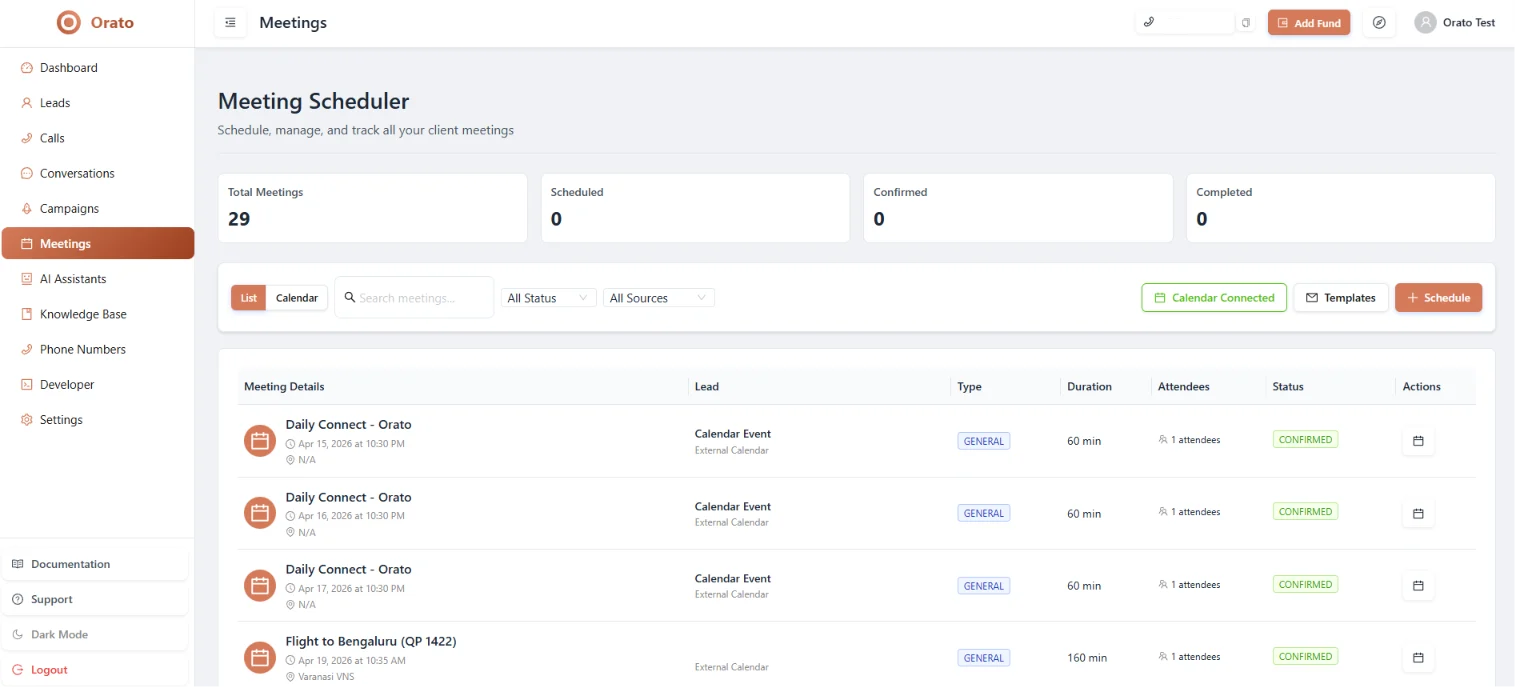
The **Meeting Scheduler** is Orato's built-in tool for managing client meetings. When an AI Assistant qualifies a lead and books a follow-up during a call, the meeting automatically appears here. You can also schedule meetings manually at any time.
 ***
## At a glance
Three stats are shown at the top of the Meetings page:
All meetings created — automatic and manual
Upcoming meetings yet to take place
Meetings that have already happened
***
## Two ways to view meetings
A table of all meetings with the following columns:
| Column | Description |
| ------------------- | ------------------------------------------------------ |
| **Meeting Details** | Title and scheduled date/time |
| **Type** | `GENERAL` or `Calendar Event` (from external calendar) |
| **Duration** | Meeting length in minutes |
| **Attendees** | Number of confirmed attendees |
| **Status** | `CONFIRMED`, `PENDING`, or `CANCELLED` |
| **Actions** | Options to reschedule or cancel |
Use the **Search**, **All Status**, and **All Sources** filters to find specific meetings.
A visual calendar showing all upcoming and past meetings by date. Click any meeting block to see its details and take actions.
Toggle between List and Calendar using the **List / Calendar** buttons at the top of the page.
***
## Scheduling a meeting manually
Click the **+ Schedule** button (top right of the Meetings page).
***
## At a glance
Three stats are shown at the top of the Meetings page:
All meetings created — automatic and manual
Upcoming meetings yet to take place
Meetings that have already happened
***
## Two ways to view meetings
A table of all meetings with the following columns:
| Column | Description |
| ------------------- | ------------------------------------------------------ |
| **Meeting Details** | Title and scheduled date/time |
| **Type** | `GENERAL` or `Calendar Event` (from external calendar) |
| **Duration** | Meeting length in minutes |
| **Attendees** | Number of confirmed attendees |
| **Status** | `CONFIRMED`, `PENDING`, or `CANCELLED` |
| **Actions** | Options to reschedule or cancel |
Use the **Search**, **All Status**, and **All Sources** filters to find specific meetings.
A visual calendar showing all upcoming and past meetings by date. Click any meeting block to see its details and take actions.
Toggle between List and Calendar using the **List / Calendar** buttons at the top of the page.
***
## Scheduling a meeting manually
Click the **+ Schedule** button (top right of the Meetings page).
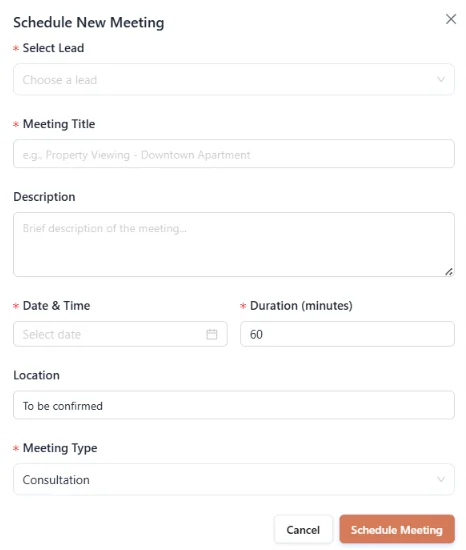 | Field | Description |
| ----------------- | ------------------------------------------------------------------ |
| **Select Lead** | Link this meeting to an existing lead in your system |
| **Meeting Title** | Descriptive name, e.g., *"Property Viewing - Andheri West."* |
| **Description** | Brief notes on the meeting's purpose |
| **Date & Time** | When will the meeting take place |
| **Duration** | Length in minutes (default: 60 min) |
| **Location** | Physical address or video call link (default: *"To be confirmed"*) |
| **Meeting Type** | Consultation, General, or other types |
The meeting is created and visible immediately in both List and Calendar views.
***
## Connecting your calendar
Click **Calendar Connected** (top right) to sync Orato with Google Calendar or Outlook.
Once connected:
* Meetings booked during calls sync to your calendar automatically
* New meetings in Orato appear in your calendar in real time
* Orato checks your availability before booking, preventing double bookings
To connect your calendar, go to **Settings → Calendar** and authorise Orato to access your calendar account.
***
## Meeting templates
Click **Templates** (top right) to save reusable meeting structures. A template pre-fills the meeting type, duration, location, and description, so you don't have to enter the same details every time.
Useful for recurring meeting types like:
* *30-min Discovery Call*
* *60-min Product Demo*
* *15-min Follow-up*
***
## How meetings get booked automatically during calls
During a call, your assistant follows the instructions and determines the lead is ready for a meeting.
With your calendar connected, the assistant fetches available time slots in real time.
The assistant offers 2–3 available slots, and the caller confirms one verbally during the call.
The meeting appears on Orato's Meetings page and on your connected calendar the moment the call ends — no manual steps needed.
To enable automatic meeting booking, connect your calendar in **Settings → Calendar** and ensure your AI Assistant's instructions include booking logic.
***
## Next steps
See the calls that led to meeting bookings
Configure your assistant to book meetings during calls
| Field | Description |
| ----------------- | ------------------------------------------------------------------ |
| **Select Lead** | Link this meeting to an existing lead in your system |
| **Meeting Title** | Descriptive name, e.g., *"Property Viewing - Andheri West."* |
| **Description** | Brief notes on the meeting's purpose |
| **Date & Time** | When will the meeting take place |
| **Duration** | Length in minutes (default: 60 min) |
| **Location** | Physical address or video call link (default: *"To be confirmed"*) |
| **Meeting Type** | Consultation, General, or other types |
The meeting is created and visible immediately in both List and Calendar views.
***
## Connecting your calendar
Click **Calendar Connected** (top right) to sync Orato with Google Calendar or Outlook.
Once connected:
* Meetings booked during calls sync to your calendar automatically
* New meetings in Orato appear in your calendar in real time
* Orato checks your availability before booking, preventing double bookings
To connect your calendar, go to **Settings → Calendar** and authorise Orato to access your calendar account.
***
## Meeting templates
Click **Templates** (top right) to save reusable meeting structures. A template pre-fills the meeting type, duration, location, and description, so you don't have to enter the same details every time.
Useful for recurring meeting types like:
* *30-min Discovery Call*
* *60-min Product Demo*
* *15-min Follow-up*
***
## How meetings get booked automatically during calls
During a call, your assistant follows the instructions and determines the lead is ready for a meeting.
With your calendar connected, the assistant fetches available time slots in real time.
The assistant offers 2–3 available slots, and the caller confirms one verbally during the call.
The meeting appears on Orato's Meetings page and on your connected calendar the moment the call ends — no manual steps needed.
To enable automatic meeting booking, connect your calendar in **Settings → Calendar** and ensure your AI Assistant's instructions include booking logic.
***
## Next steps
See the calls that led to meeting bookings
Configure your assistant to book meetings during calls