> ## Documentation Index
> Fetch the complete documentation index at: https://docs.tryorato.com/llms.txt
> Use this file to discover all available pages before exploring further.
# Phone Numbers
> Buy and manage phone numbers for your AI Assistants. Available in the United States and India. Requires a one-time compliance request.
## Overview
Phone numbers are what your AI Assistants use to make outbound calls and receive inbound calls. You purchase numbers directly through Orato; no third-party telephony provider setup needed.
 Currently available in:
Numbers with +1 country code for US-based calling
Numbers with the +91 country code for India-based calling
***
## Buying a phone number
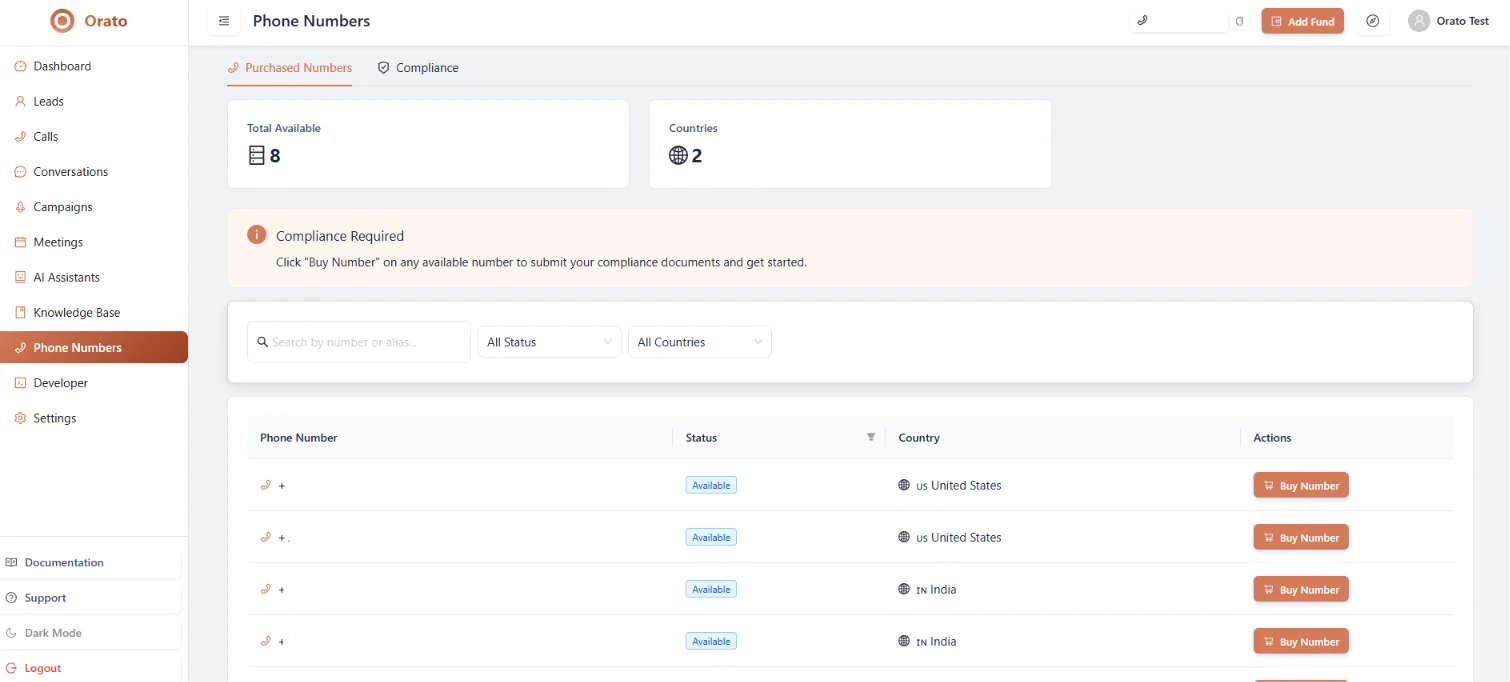
Click **Phone Numbers** in the left sidebar. You'll see all available numbers with their status and country.
Stats at the top show **the total available** numbers and **Countries** covered.
Find a number you want and click **Buy Number** next to it. This opens the compliance request form.
Before any number can be activated, Orato requires a one-time compliance verification to confirm your business identity. This is required by telecom regulations.
Currently available in:
Numbers with +1 country code for US-based calling
Numbers with the +91 country code for India-based calling
***
## Buying a phone number
Click **Phone Numbers** in the left sidebar. You'll see all available numbers with their status and country.
Stats at the top show **the total available** numbers and **Countries** covered.
Find a number you want and click **Buy Number** next to it. This opens the compliance request form.
Before any number can be activated, Orato requires a one-time compliance verification to confirm your business identity. This is required by telecom regulations.
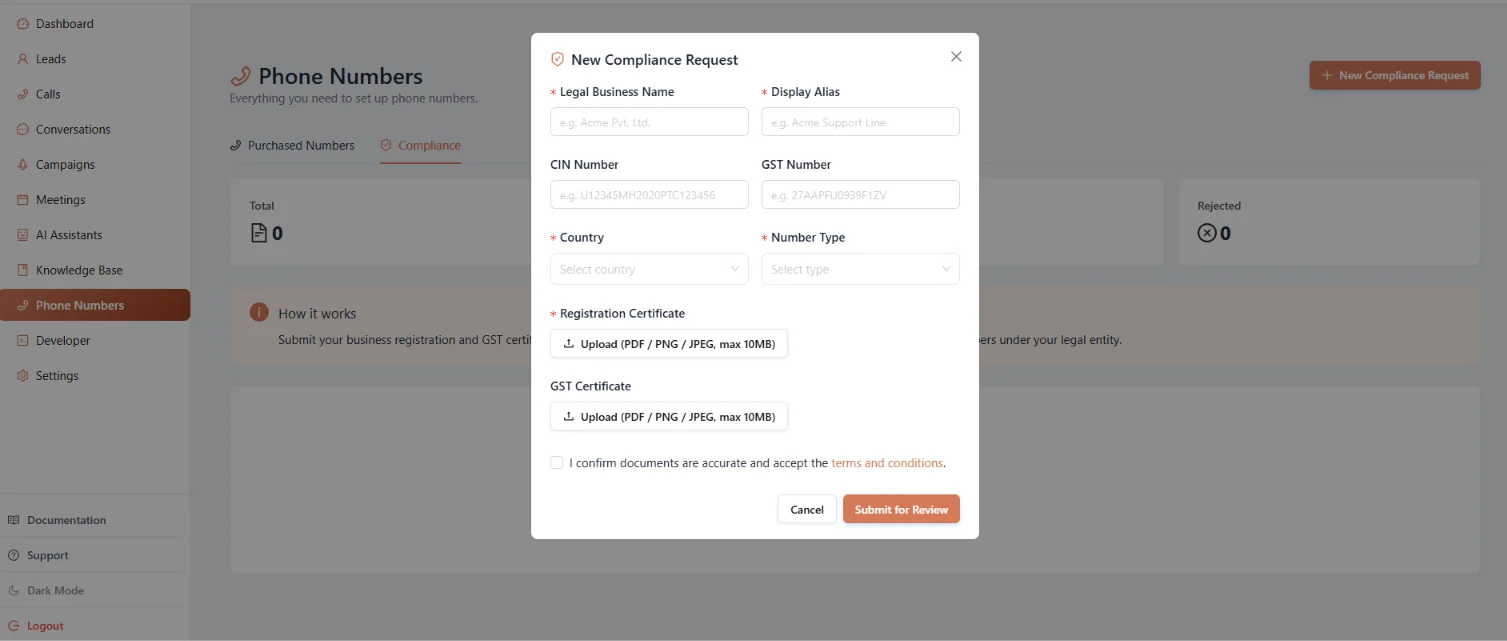 Fill in the compliance form:
| Field | Description |
| ---------------------------- | ---------------------------------------------------- |
| **Legal Business Name** | Your registered company name, e.g., *Acme Pvt. Ltd.* |
| **Display Alias** | How you want to appear, e.g., *Acme Support Line* |
| **CIN Number** | Company Identification Number |
| **GST Number** | Your GST registration number |
| **Country** | Country of business registration |
| **Number Type** | Type of number being requested |
| **Registration Certificate** | Upload PDF/PNG/JPEG - max 10MB |
| **GST Certificate** | Upload PDF/PNG/JPEG - max 10MB |
Check the confirmation box and click **Submit for Review**.
Orato reviews your documents. Once approved, your number is activated and ready to be assigned to an AI Assistant.
Compliance is a **one-time process per account**. Once approved, you can purchase additional numbers without resubmitting documents.
***
## Compliance tab
Click the **Compliance** tab on the Phone Numbers page to see all your compliance requests:
| Status | Meaning |
| ------------ | ------------------------------------------------------ |
| **Pending** | Request submitted, currently under review |
| **Approved** | Documents verified, numbers are available to purchase |
| **Rejected** | Documents were not accepted. Resubmit with corrections |
If your compliance request is rejected, you'll receive a reason. Correct the issue in your documents and resubmit via **New Compliance Request**.
***
## Assigning a number to an assistant
Once you have an active phone number, connect it to an AI Assistant:
1. Go to **AI Assistants** and open the assistant you want to use for calls
2. In the **Setup** step, select your phone number in the telephony settings
3. Save the assistant
Your assistant will now use that number for all inbound and outbound calls.
***
## Next steps
Assign your number to an AI Assistant
Start making outbound calls with your number
Monitor call activity and billing
Review call transcripts and outcomes
Fill in the compliance form:
| Field | Description |
| ---------------------------- | ---------------------------------------------------- |
| **Legal Business Name** | Your registered company name, e.g., *Acme Pvt. Ltd.* |
| **Display Alias** | How you want to appear, e.g., *Acme Support Line* |
| **CIN Number** | Company Identification Number |
| **GST Number** | Your GST registration number |
| **Country** | Country of business registration |
| **Number Type** | Type of number being requested |
| **Registration Certificate** | Upload PDF/PNG/JPEG - max 10MB |
| **GST Certificate** | Upload PDF/PNG/JPEG - max 10MB |
Check the confirmation box and click **Submit for Review**.
Orato reviews your documents. Once approved, your number is activated and ready to be assigned to an AI Assistant.
Compliance is a **one-time process per account**. Once approved, you can purchase additional numbers without resubmitting documents.
***
## Compliance tab
Click the **Compliance** tab on the Phone Numbers page to see all your compliance requests:
| Status | Meaning |
| ------------ | ------------------------------------------------------ |
| **Pending** | Request submitted, currently under review |
| **Approved** | Documents verified, numbers are available to purchase |
| **Rejected** | Documents were not accepted. Resubmit with corrections |
If your compliance request is rejected, you'll receive a reason. Correct the issue in your documents and resubmit via **New Compliance Request**.
***
## Assigning a number to an assistant
Once you have an active phone number, connect it to an AI Assistant:
1. Go to **AI Assistants** and open the assistant you want to use for calls
2. In the **Setup** step, select your phone number in the telephony settings
3. Save the assistant
Your assistant will now use that number for all inbound and outbound calls.
***
## Next steps
Assign your number to an AI Assistant
Start making outbound calls with your number
Monitor call activity and billing
Review call transcripts and outcomes