
Key types
Create a key
1
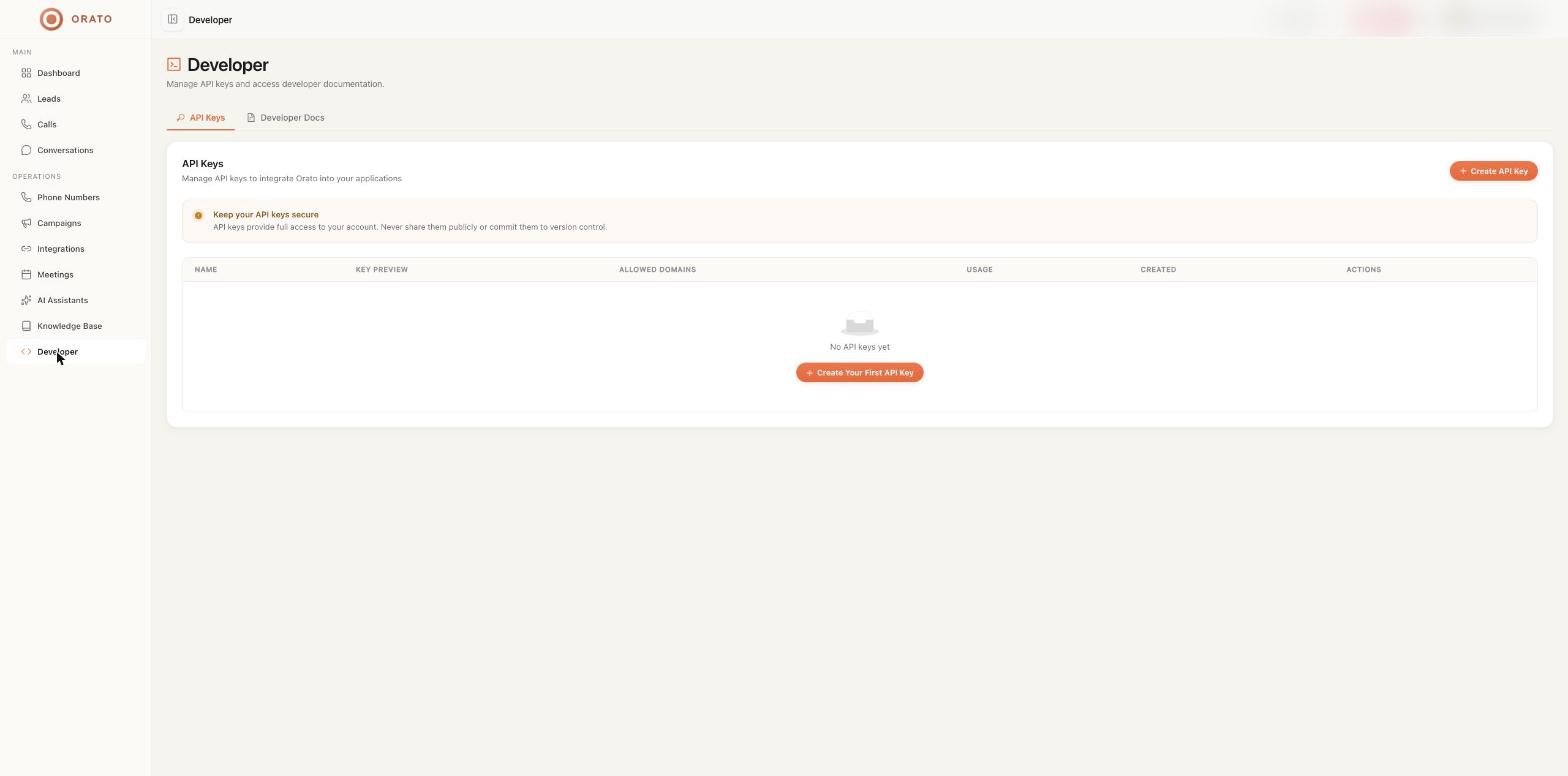
Click Create API Key
In Developer → API Keys, click + Create API Key.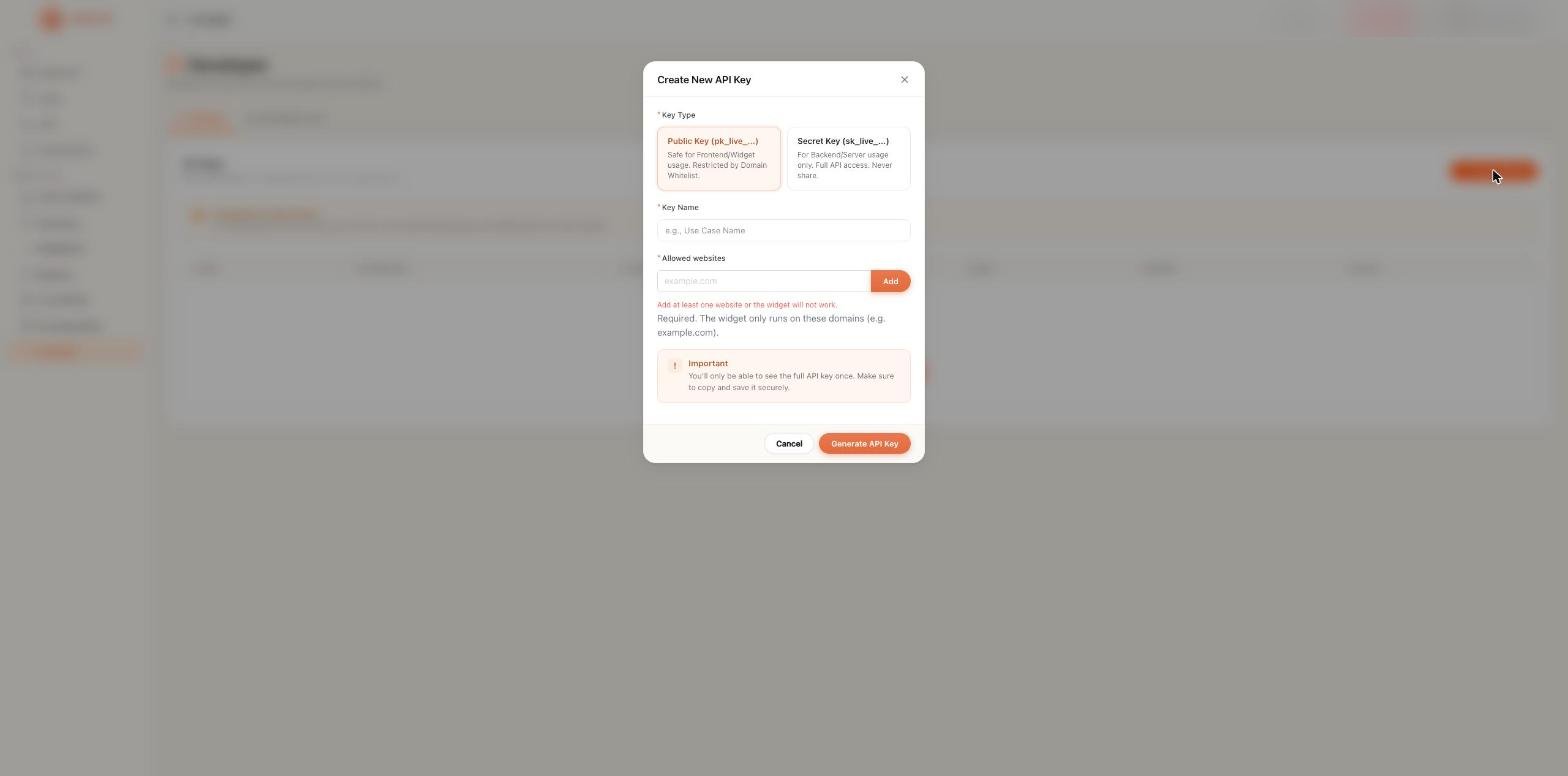
2
Choose the key type
Select Public Key or Secret Key.
3
Name it
Enter a Key Name that describes its use, for example
Marketing website or CRM sync.4
Add allowed websites (public keys)
Enter each domain where the widget will run, for example
example.com, and click Add. At least one domain is required, or the widget won’t load.5
Generate and copy
Click Generate API Key and copy the key right away.
Manage keys
The table lists each key’s Name, Key preview, Allowed domains, Usage, and Created date, with actions to manage it.Security best practices
- Never commit keys to version control or share them in chat or email.
- Use public keys only in browsers. Use secret keys only on servers.
- Whitelist only the domains you control, including staging if you test there.
- Create separate keys per site or service, so you can revoke one without affecting others.
- Revoke keys you no longer use.
Only workspace Owners and Admins can manage API keys. See Team and roles.