
1
Create the assistant from a template
Go to AI Assistants and click Website Voice Assistant. Give it an Agent name, then click Import from website on the Prompt tab and enter your site URL. Orato imports your pages into the knowledge base and helps you confirm business facts for the prompt.
2
Set the role
On the Settings tab, set Role to Web Widget. Set Who speaks first? to Agent waits for user so the assistant doesn’t talk over a visitor’s greeting.
3
Brand the widget
Open the Branding tab and use the live preview: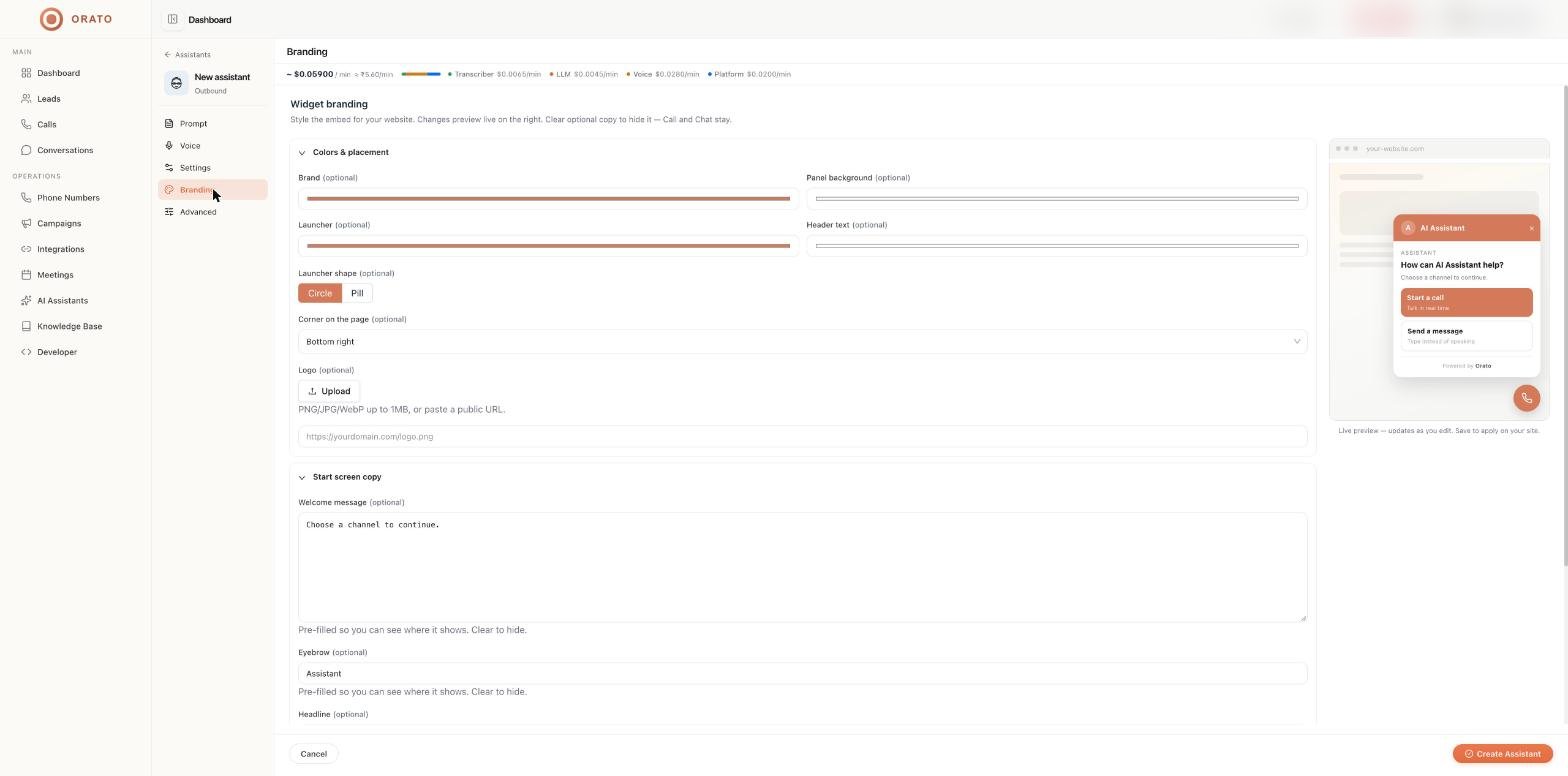
- Set Brand and Launcher colors to match your site.
- Choose a Launcher shape (Circle or Pill) and Corner on the page.
- Upload your Logo (PNG, JPG, or WebP up to 1 MB).
- Edit the start screen Headline, for example
How can {name} help? - Add your Privacy Policy URL and Terms URL.
4
Create a public key
Go to Developer → API Keys → Create API Key, choose Public Key, name it
Website, add your domain (for example example.com), and click Generate API Key. Copy the key; you’ll see it only once.5
Install the script
Paste this before
</body> on every page where the widget should appear:6
Try it
Reload your site, click the launcher, and choose Start a call or Send a message.
7
Review
Widget conversations appear on Conversations, counted under Voice and Chat.