
What is the Batch Calling?
Batch calling is how you run high-volume outbound operations in Orato. Instead of calling one person at a time, you upload a list of contacts, assign an AI Assistant, and Orato calls every person in that list automatically, at whatever pace you set. All of this happens through Campaigns.
How batch calling works
1
Build your contact list (Lead Batch)
Go to Leads and create a Lead Batch. This is the list of people your assistant will call.You can add contacts manually or upload a CSV. Your CSV needs at minimum a
phone_number column, but you can add more columns that get passed to your assistant as personalisation variables.2
Create a Campaign
Go to Campaigns and click + Create Campaign.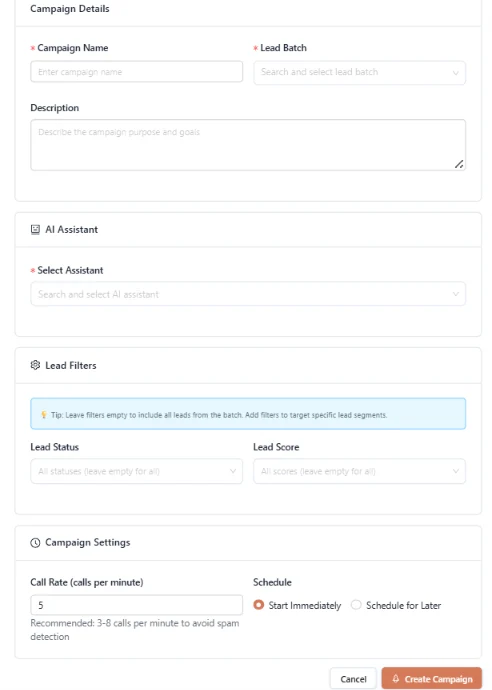
- Campaign Name: e.g. “June Outreach — Renewal Leads”
- Lead Batch: pick the batch you just created
- AI Assistant: choose the assistant that’ll handle the calls
- Lead Filters: optional; filter by lead status or score to target a segment of your batch
- Call Rate: set between 3 and 8 calls per minute (recommended)
- Schedule: start immediately or pick a date and time
3
Set the right call rate
The call rate controls how many calls are made per minute. The dashboard recommends 3–8 calls per minute, specifically to avoid spam detection by mobile carriers.
4
Launch the campaign
Click Create Campaign. If you set it to start immediately, your assistant starts dialing straight away. You’ll see the progress bar start moving on the Campaigns page.
Monitoring while it runs
Once your campaign is running, click on it to open the detail view:- Progress bar: calls completed out of total contacts
- Results breakdown: how many connected, how many are qualified, failed, or unanswered
- Live Updates toggle: turn this on in the Calls page to see call results as they come in
Campaign statuses
Personalizing calls in a batch
If your CSV includes extra columns beyondphone_numberYou can reference those in your assistant’s instructions as variables. Your assistant will automatically use the right value for each contact it calls.
For example, if your CSV has a name column, add this to your instructions:
Before you launch
Your Lead Batch is created and has contacts with valid phone numbers
Your AI Assistant is configured and tested using the Talk button
The call rate is set between 3 and 8 calls per minute
Your account has enough balance — click Add Fund if you need to top up
The calling time is appropriate for your contacts’ time zone
Where to go next
Campaigns
Full guide to creating and managing campaigns
Leads
Create and manage your Lead Batches
Call History
Review results and transcripts after the campaign runs
Conversations
Read full transcripts of individual calls from the batch