Overview

A Campaign is how you put your AI Assistant to work at scale. You pick a Lead Batch, assign an assistant, and Orato calls every contact in that list automatically — logging outcomes, transcripts, and qualified leads as it goes.
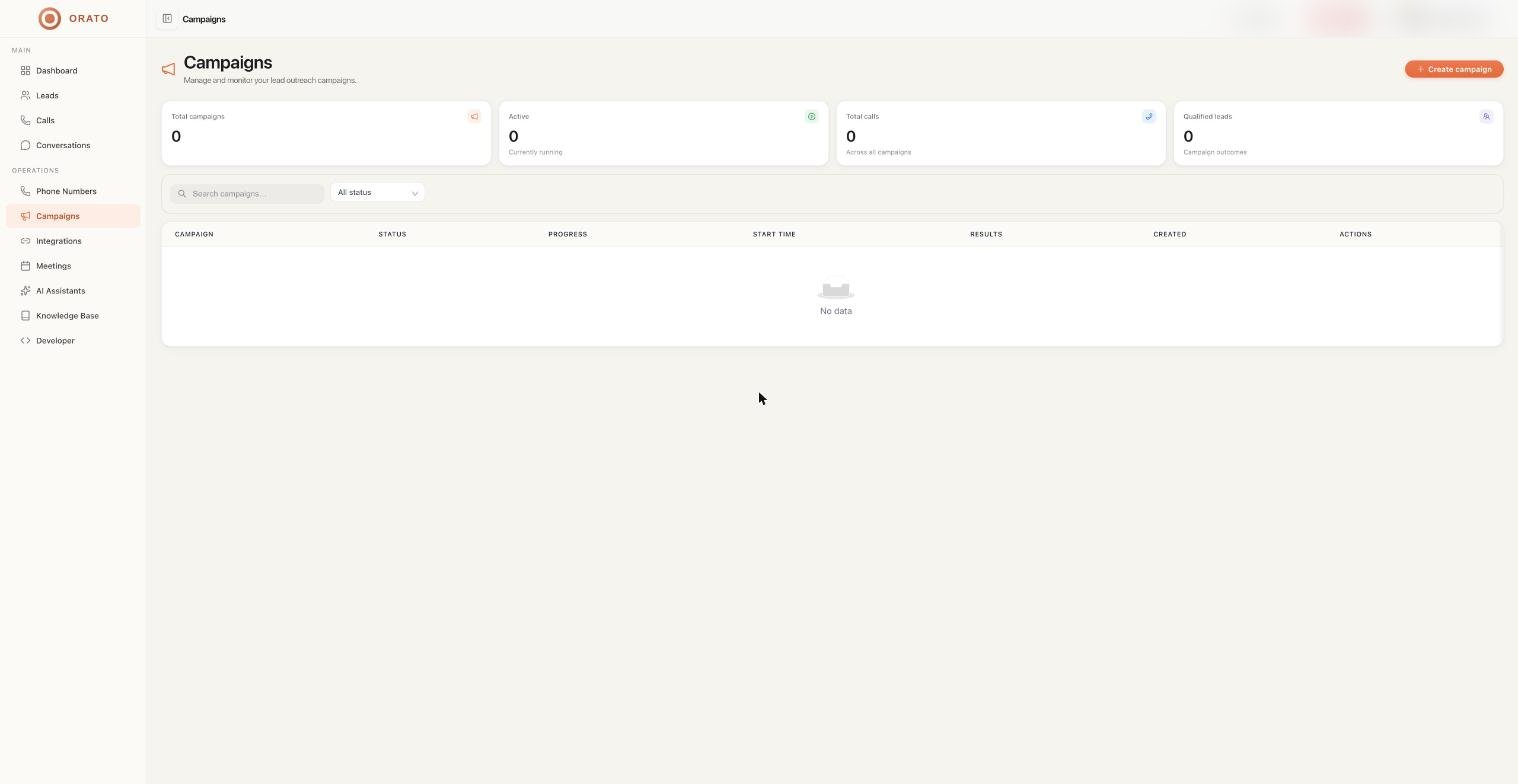
Orato Campaigns — list of all campaigns with status and progress

The campaigns dashboard

Four numbers are shown at the top:

Total Campaigns

Every campaign you’ve ever created

Active

Campaigns running right now

Total Calls

All calls made across every campaign

Qualified Leads

Contacts marked as qualified by your assistant

Campaign status

StatusWhat it means
RunningThe campaign is actively making calls
CompletedEvery contact in the batch has been called
CancelledThe campaign was stopped before finishing

Creating a campaign

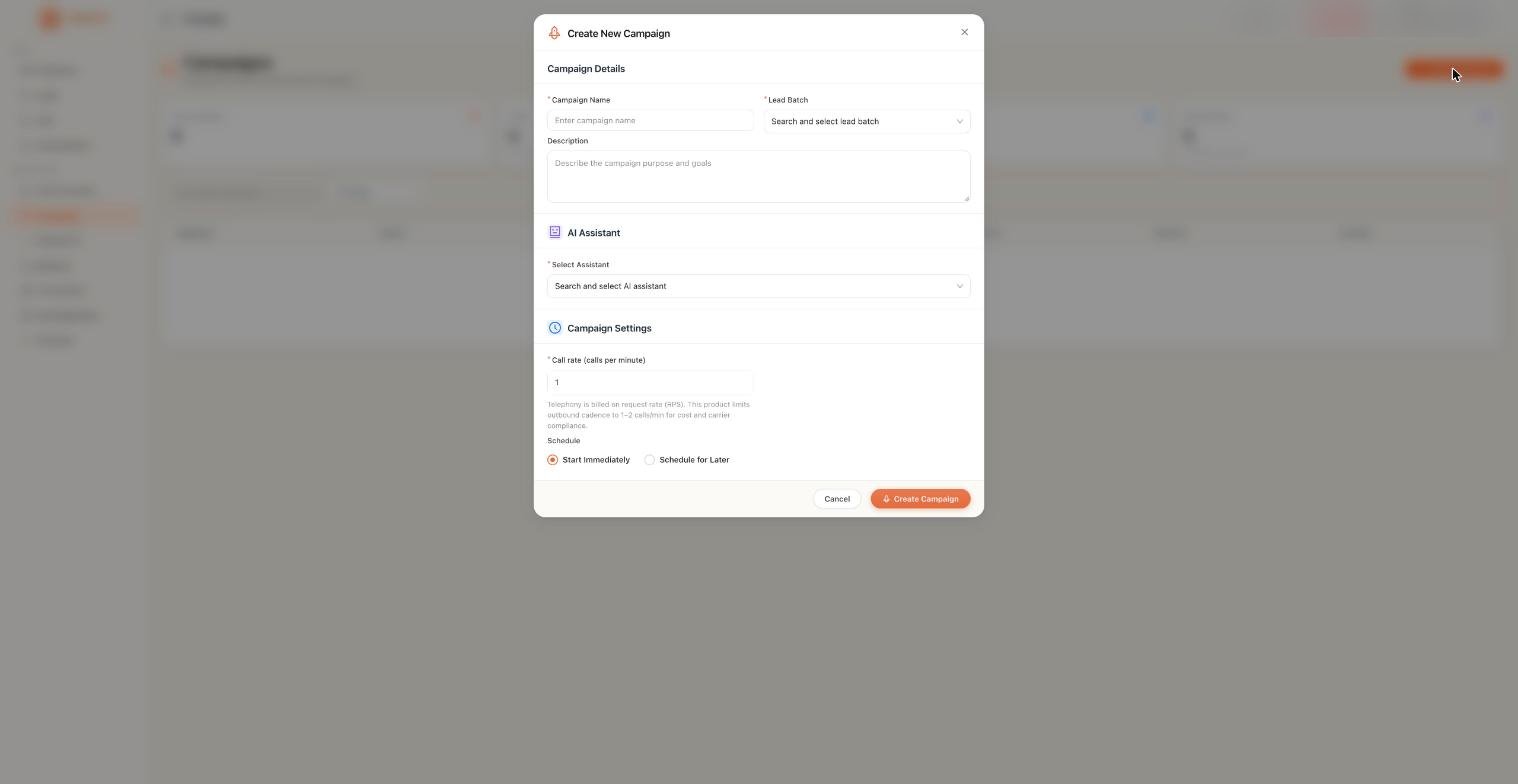
Click + Create Campaign in the top right of the Campaigns page.
Create Campaign
1

Fill in the campaign details

FieldWhat to enter
Campaign NameSomething clear — e.g. “June Outreach — Property Leads”
Lead BatchThe batch of contacts you want to call
DescriptionOptional notes about what this campaign is for
2

Choose your AI Assistant

Pick which assistant handles the calls. Make sure the assistant’s instructions match the type of leads you’re calling.
An assistant set up for lead qualification will behave very differently from one set up for payment reminders. Use the right one for the job.
3

Add lead filters (optional)

If you don’t want to call every contact in the batch, narrow it down:
  • Lead Status: only call contacts with a specific status (e.g. new leads only)
  • Lead Score: only call contacts above a certain score
Leave both empty to call the entire batch.
As the dashboard says: “Leave filters empty to include all leads from the batch. Add filters to target specific lead segments.”
4

Set the call rate and schedule

SettingGuidance
Call Rate (calls/min)Keep it between 3 and 8 calls per minute. Going higher risks triggering spam detection on carrier networks. The default is 5.
Start ImmediatelyCampaign begins the moment you click Create
Schedule for LaterSet a specific date and time to start
Don’t set the call rate above 8 calls per minute. It won’t get you results faster — it’ll just get your number flagged as spam.
5

Click Create Campaign

That’s it. If you chose Start Immediately, your assistant starts dialling straight away.

Monitoring a live campaign

Click any campaign to open its detail view:
  • Progress bar: how many contacts have been called versus how many are left
  • Results: a breakdown of outcomes (connected, no answer, qualified, failed)
  • Individual calls: click through to read the transcript of any specific call

Before you launch

A Lead Batch exists with valid phone numbers in international format
Your AI Assistant is configured and tested with the Talk button
The calling hours are appropriate for your contacts’ time zone
Your account has enough balance — check by clicking Add Fund in the top nav

Where to go next

Leads

Create a Lead Batch if you haven’t already

AI Assistants

Configure the assistant that will make the calls

Conversations

Review call transcripts and outcomes after the campaign runs

Calls

Monitor real-time activity and usage during the campaign