
You need an Orato account. Sign up or log in at app.tryorato.com.
1. Create an assistant
1
Open AI Assistants
In the sidebar, click AI Assistants. Start from one of the Agent templates or click + Create Assistant to start blank.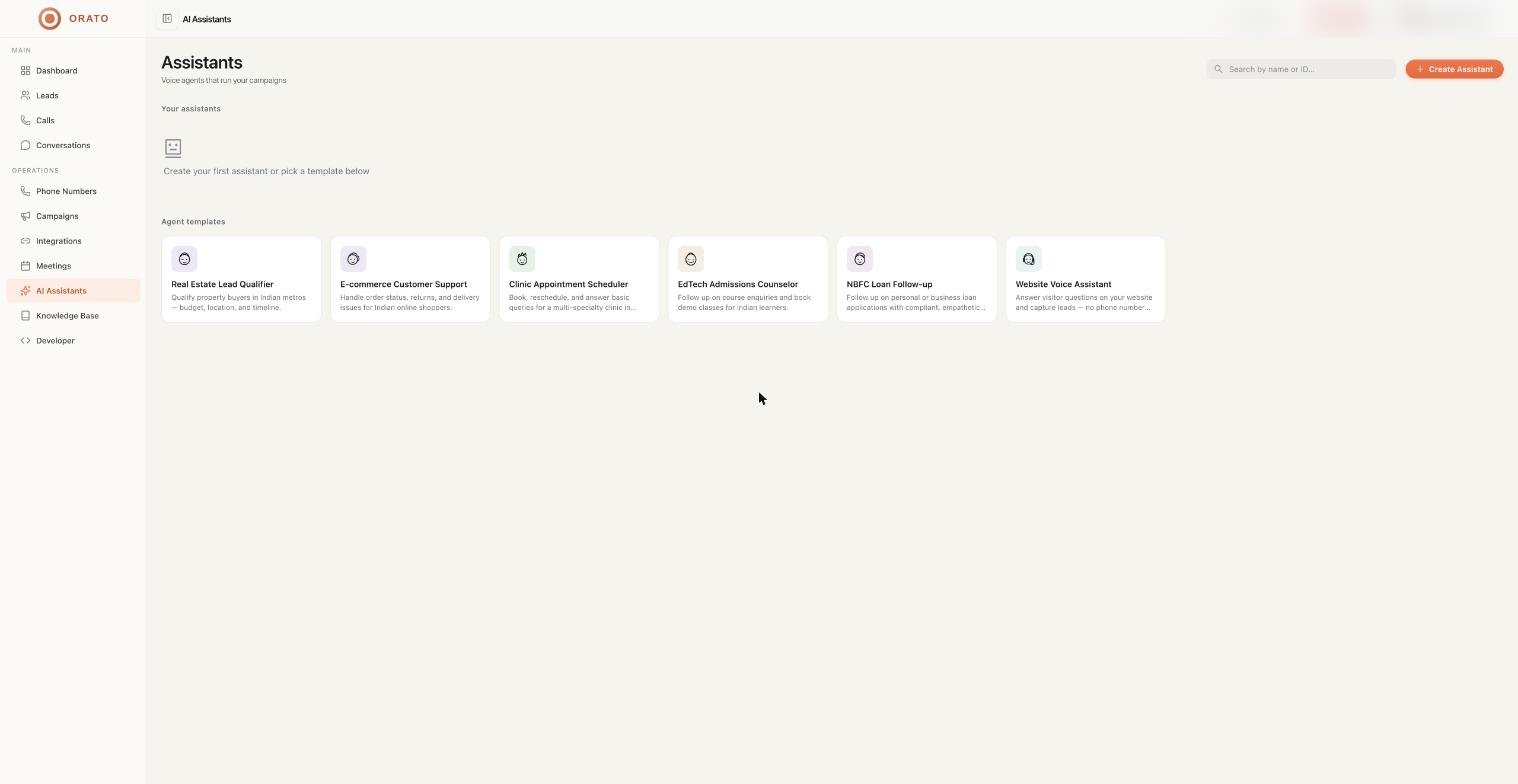
2
Write the prompt
On the Prompt tab: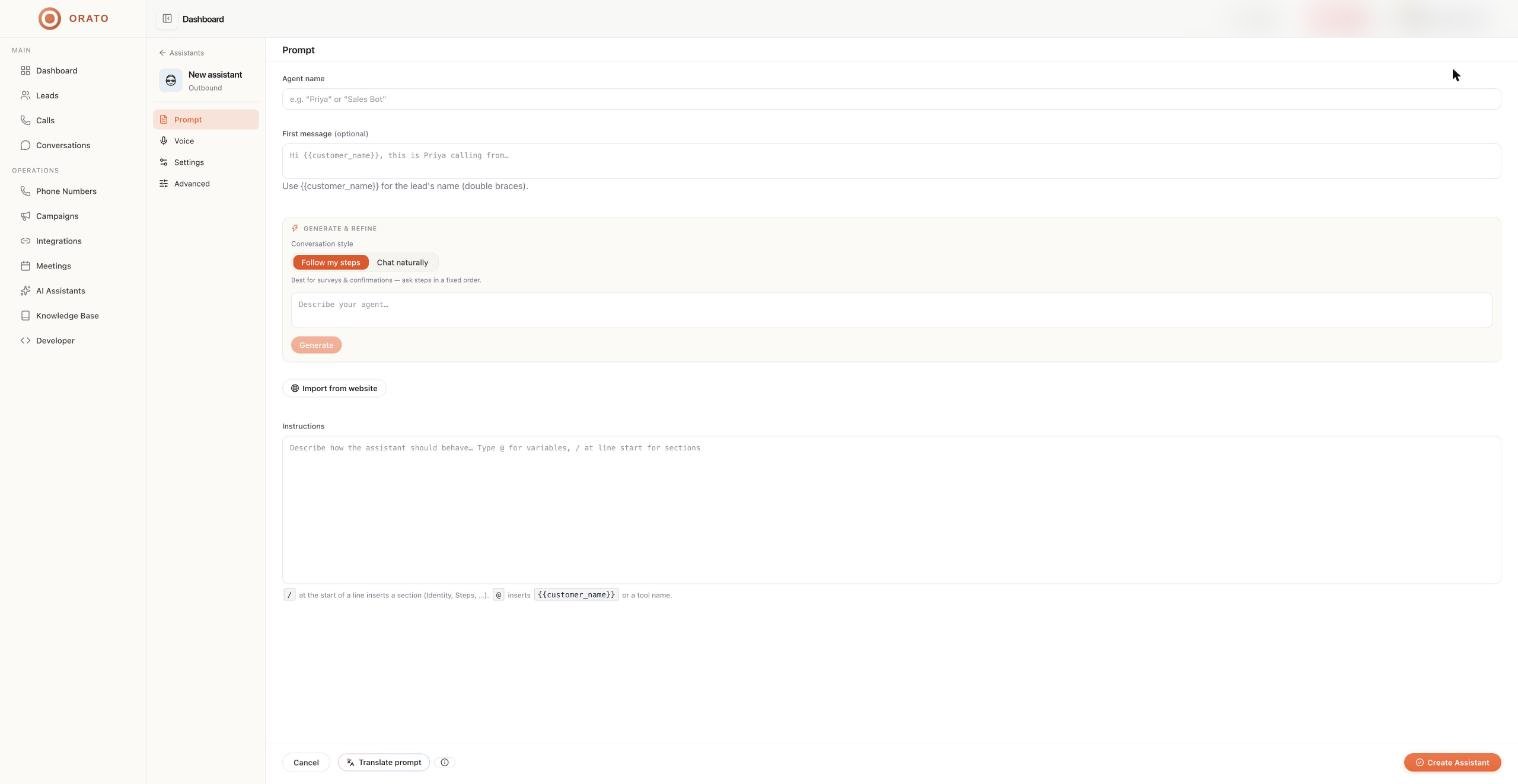
- Enter an Agent name, for example
Priya. - Optionally add a First message, for example
Hi {{customer_name}}, this is Priya calling from Acme Realty. - Under Generate & refine, pick a conversation style (Follow my steps or Chat naturally), describe your agent in a sentence or two, and click Generate. Orato writes the instructions for you.
3
Choose a voice
On the Voice tab, pick a provider (Cartesia, ElevenLabs, Sarvam, or Smallest AI), a voice, and the speed. Click Preview to hear it. Set the Primary language the agent starts in.
4
Pick a role and AI model
On the Settings tab, choose the Role:
- Outbound to call leads
- Inbound to answer calls to your number
- Web Widget to talk to visitors on your website
5
Save
Click Create Assistant. You can come back and edit any tab later.
2. Test it in your browser
You don’t need a phone number to test. Open your assistant and use Talk to start a live voice conversation in the browser. Try the questions your customers usually ask and listen for anything that sounds off. After each test, open Conversations to review what happened and refine the prompt.3. Go live
- Outbound calls
- Inbound calls
- Website widget
1
Buy a number
Go to Phone Numbers → Buy a number and buy a US number, or submit India compliance for an Indian number. See Phone numbers.
2
Set the caller ID
In your assistant’s Settings tab, choose the number under Outbound caller ID.
3
Add leads
Go to Leads → Create batch. Add contacts manually or upload a CSV/Excel file with
name and phone columns.4
Call
For one lead, go to Calls → Make call. For a whole batch, go to Campaigns → Create campaign.
Before you go live
Test the assistant with Talk and review the transcript in Conversations.
Attach knowledge documents if the assistant needs to answer product or pricing questions.
Add a Transfer to Human number in Advanced so callers can reach a person.
Top up your wallet in Settings → Billing & Credits.
Next steps
AI Assistants
Every assistant setting explained.
Prompting guide
Write instructions that sound natural on calls.
Campaigns
Call a full lead batch automatically.
Tutorials
Step-by-step builds for common use cases.