
Overview
Call History is your complete record of every call that’s gone through Orato. Every outbound call from a Campaign, every inbound call to your number, it’s all here. You can search, filter, review transcripts, and listen to recordings from this page.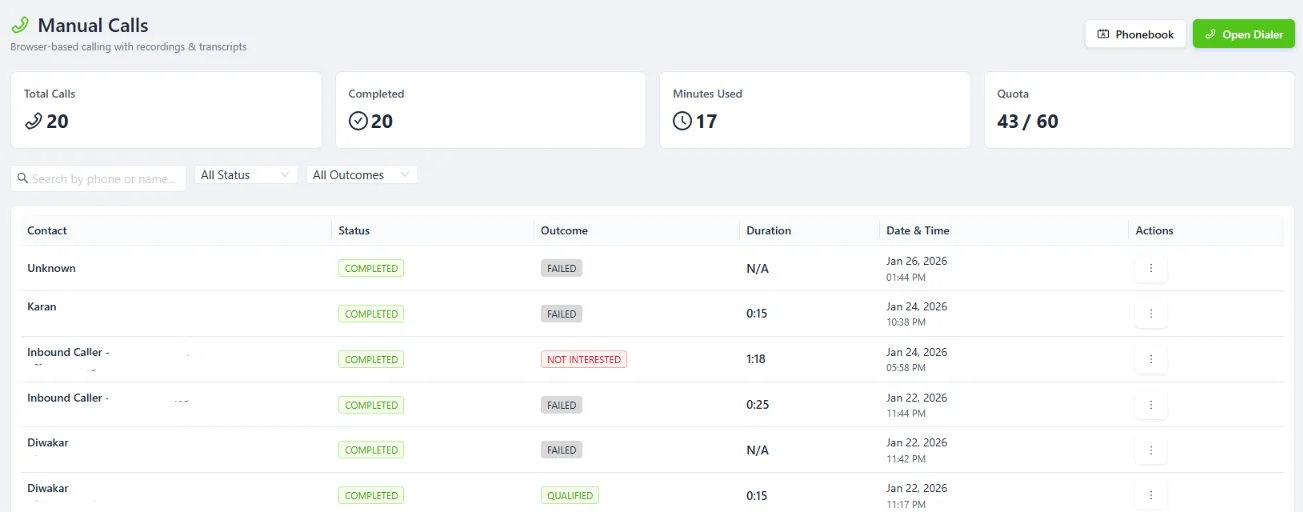
Reading the call list
The Calls page shows every call in a table with the following columns:Filtering your call history
Use the filters at the top of the page to find exactly what you’re looking for:- By Status
- By Outcome
- By Date Range
Filter calls by how they ended:
- All Status: shows everything
- Completed: calls that ran to a natural end
- Failed: calls that couldn’t connect
- Transferred: calls your assistant, handed off to a human
- In Progress calls currently active (live view)
What’s inside a call record
Click Actions on any call to open its full detail view:Full transcript
Full transcript
A word-for-word record of everything said during the call, your assistant’s lines and the caller’s responses, in order, with timestamps on each turn.
Recording
Recording
The actual audio of the call. Listen back to check tone, pace, how objections were handled, and whether the assistant stuck to the script.
Outcome and summary
Outcome and summary
The outcome tagged by your assistant and an AI-written summary of the key points from the conversation.
Lead information
Lead information
The contact’s details linked to this call. Click View Lead to open the full lead record and see their history across multiple calls.
Call metadata
Call metadata
Duration, timestamp, which assistant handled it, the phone number used, and whether it was inbound or outbound.
Live updates
Toggle Live Updates (top right of the Calls page) to have the list refresh automatically as new calls come in. Useful when you’re monitoring an active campaign and want to see results in real time without refreshing the page manually.Call statuses explained
Exporting call data
Click the Export button at the top right of the Calls page to download your call history as a CSV. The export includes all visible columns and respects your current filters, so if you’ve filtered by date range or outcome, only those calls are exported.Where to go next
Conversations
Full transcripts and recordings of every interaction
Outbound Calls
Make outbound calls from the dashboard or API
Inbound Calls
Set up your assistant to receive incoming calls
Campaigns
Run batch calling campaigns to your lead list