Overview
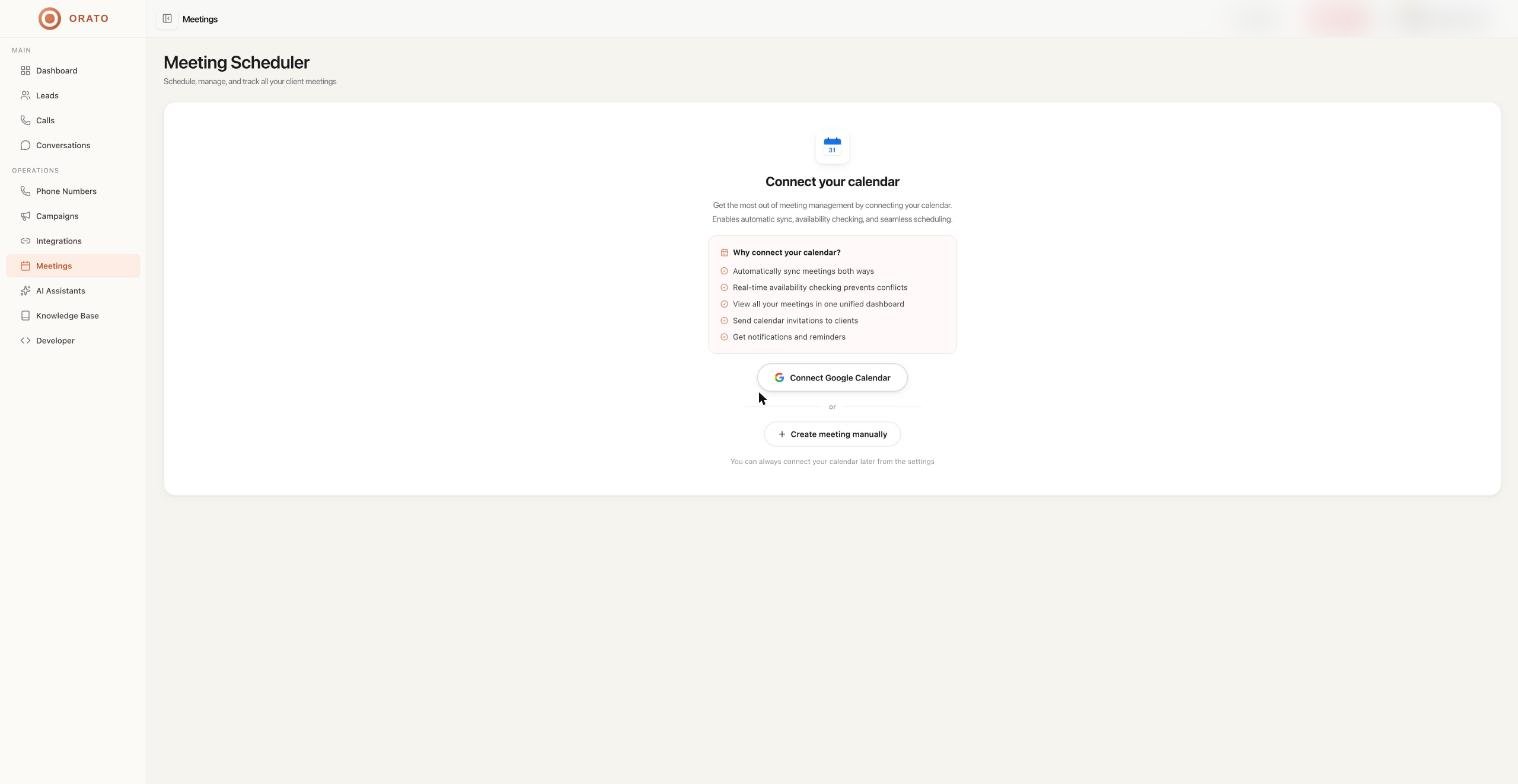
The Meeting Scheduler is Orato’s built-in tool for managing client meetings. When an AI Assistant qualifies a lead and books a follow-up during a call, the meeting automatically appears here. You can also schedule meetings manually at any time.
At a glance
Three stats are shown at the top of the Meetings page:Total Meetings
All meetings created — automatic and manual
Scheduled
Upcoming meetings yet to take place
Completed
Meetings that have already happened
Two ways to view meetings
- List View
- Calendar View
A table of all meetings with the following columns:
Use the Search, All Status, and All Sources filters to find specific meetings.
| Column | Description |
|---|---|
| Meeting Details | Title and scheduled date/time |
| Type | GENERAL or Calendar Event (from external calendar) |
| Duration | Meeting length in minutes |
| Attendees | Number of confirmed attendees |
| Status | CONFIRMED, PENDING, or CANCELLED |
| Actions | Options to reschedule or cancel |
Scheduling a meeting manually
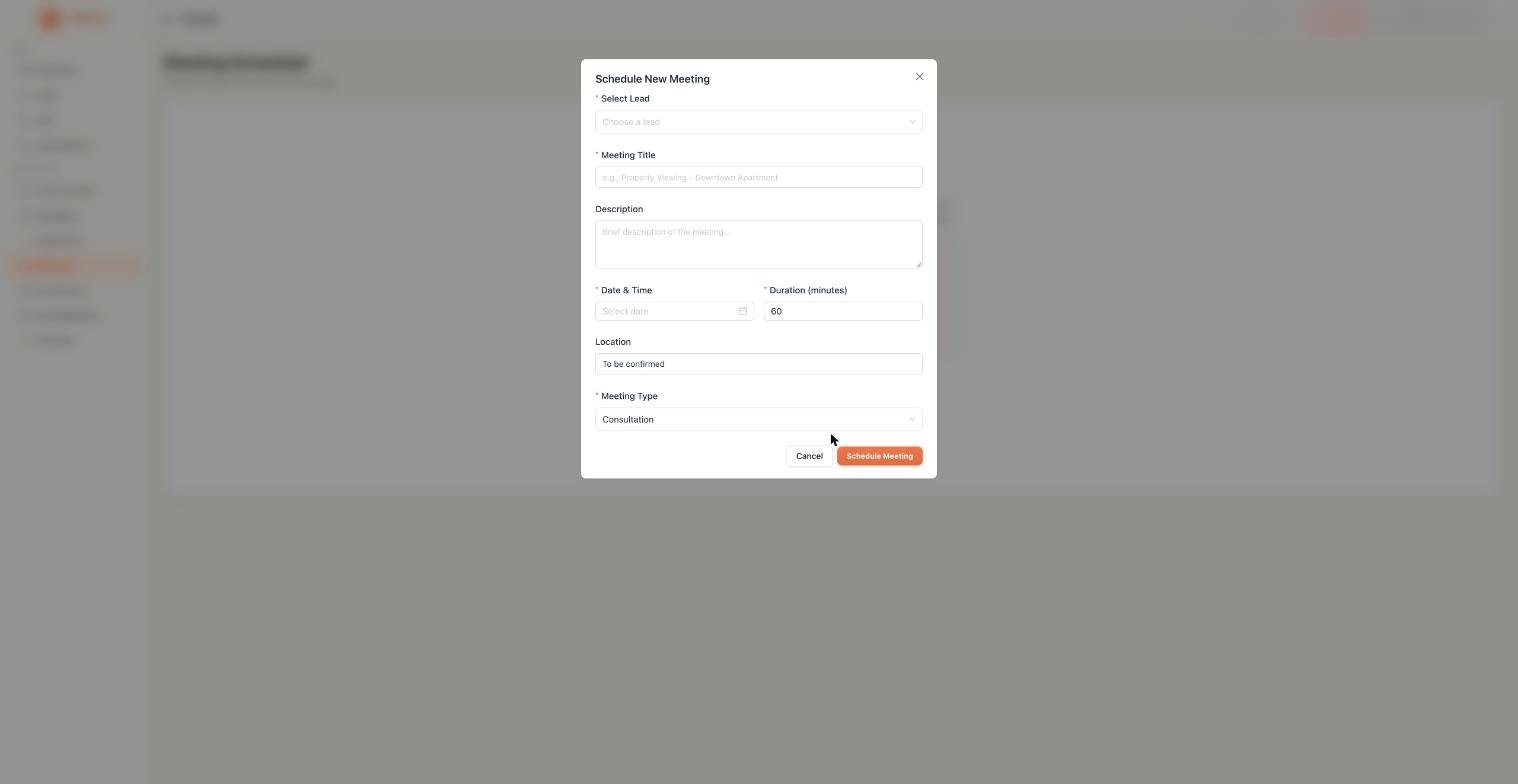
Fill in the meeting details

| Field | Description |
|---|---|
| Select Lead | Link this meeting to an existing lead in your system |
| Meeting Title | Descriptive name, e.g., “Property Viewing - Andheri West.” |
| Description | Brief notes on the meeting’s purpose |
| Date & Time | When will the meeting take place |
| Duration | Length in minutes (default: 60 min) |
| Location | Physical address or video call link (default: “To be confirmed”) |
| Meeting Type | Consultation, General, or other types |
Connecting your calendar
Click Calendar Connected (top right) to sync Orato with Google Calendar or Outlook. Once connected:- Meetings booked during calls sync to your calendar automatically
- New meetings in Orato appear in your calendar in real time
- Orato checks your availability before booking, preventing double bookings
To connect your calendar, go to Settings → Calendar and authorise Orato to access your calendar account.
Meeting templates
Click Templates (top right) to save reusable meeting structures. A template pre-fills the meeting type, duration, location, and description, so you don’t have to enter the same details every time. Useful for recurring meeting types like:- 30-min Discovery Call
- 60-min Product Demo
- 15-min Follow-up
How meetings get booked automatically during calls
The assistant qualifies the lead
During a call, your assistant follows the instructions and determines the lead is ready for a meeting.
The assistant checks your calendar.
With your calendar connected, the assistant fetches available time slots in real time.
The caller picks a time
The assistant offers 2–3 available slots, and the caller confirms one verbally during the call.
Next steps
Conversations
See the calls that led to meeting bookings
AI Assistants
Configure your assistant to book meetings during calls