
System variables
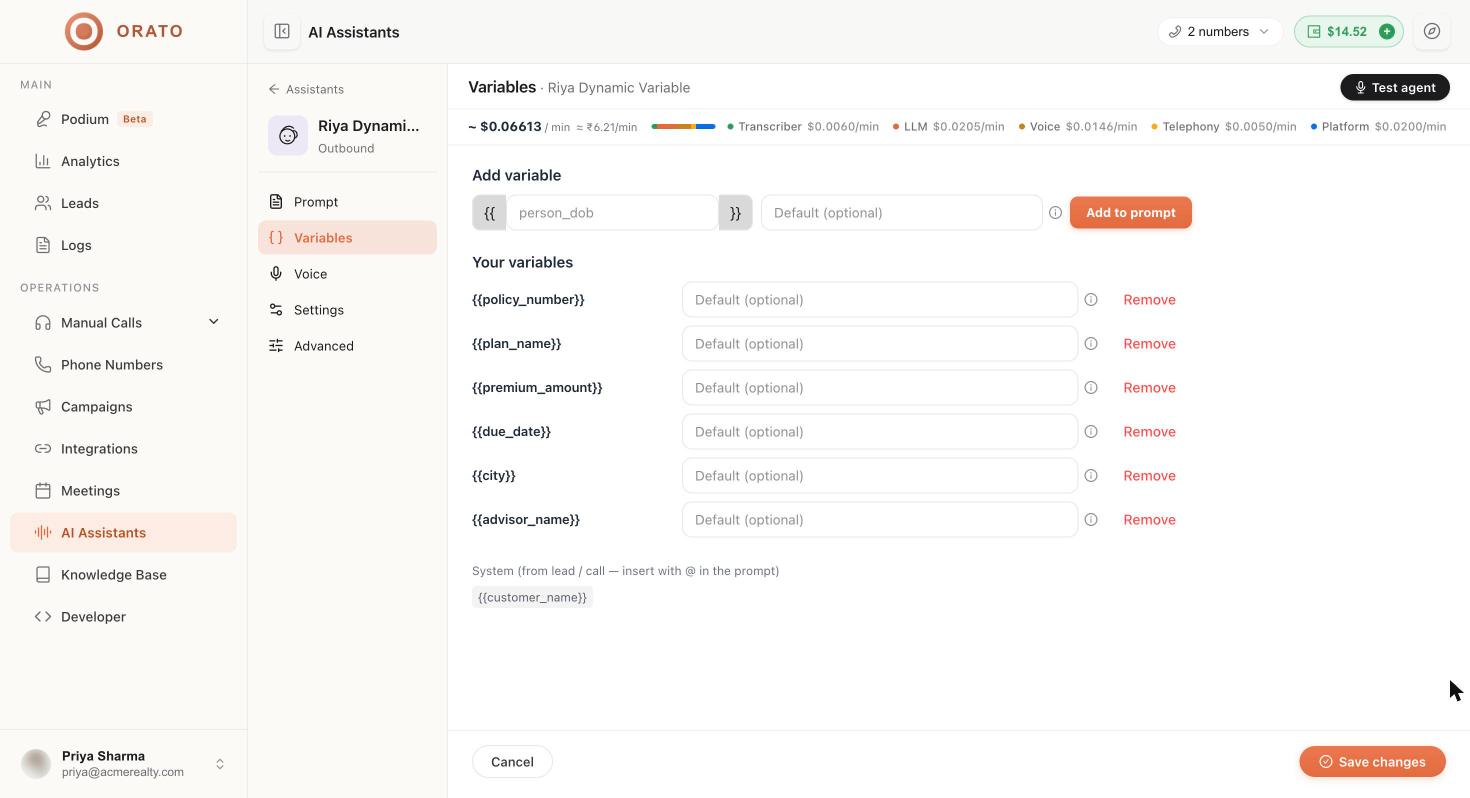
System variables come from the lead or call automatically. You don’t need to create them.Custom variables
1
Name the variable
Under Add variable, type a name between the braces, for example
policy_number or person_dob. Use lowercase letters and underscores.2
Set a default (optional)
Enter a Default value. The agent uses it on test calls, inbound calls, widget sessions, and guest calls, where there’s no lead list to read from.
3
Add it
Click Add to prompt. The variable is listed under Your variables and you can insert it into your instructions.
4
Save
Click Save changes at the bottom of the editor.
Use variables in your prompt
Insert a variable anywhere in the First message or Instructions on the Prompt section. In Instructions, type@ to pick a variable from a list.
Where the values come from
Map lead columns in a campaign
When you create a campaign with an assistant that has custom variables, the Agent step lists every column your file needs, for example Name, Phone, Policy number, Plan name, Premium amount, Due date, City, and Advisor name. Your column names don’t have to match. In the Lead file step, under Match your columns, choose what each column is used as, such as matching yourPremium column to Premium amount. Pick Don’t use for columns you want to ignore.
If your file has no column for a variable, the wizard tells you how many details weren’t found. Match each one to a column, or type one value for everyone to use the same value for every lead in the campaign.
Example: insurance renewal reminders
Upload a list with these columns, match them in the campaign, and every lead hears their own policy details.
Next steps
Leads
Upload lists with extra columns that become lead details.
Campaigns
Map your columns to variables and launch.