Before you start
At least one phone number. See Phone numbers.
Wallet balance. Manual calls are billed per connected minute.
Microphone access in your browser. Allow it when the browser asks.
A free call line. Manual calls share your organization’s call concurrency with campaigns and inbound calls.
Make a call
1
Open the dialer
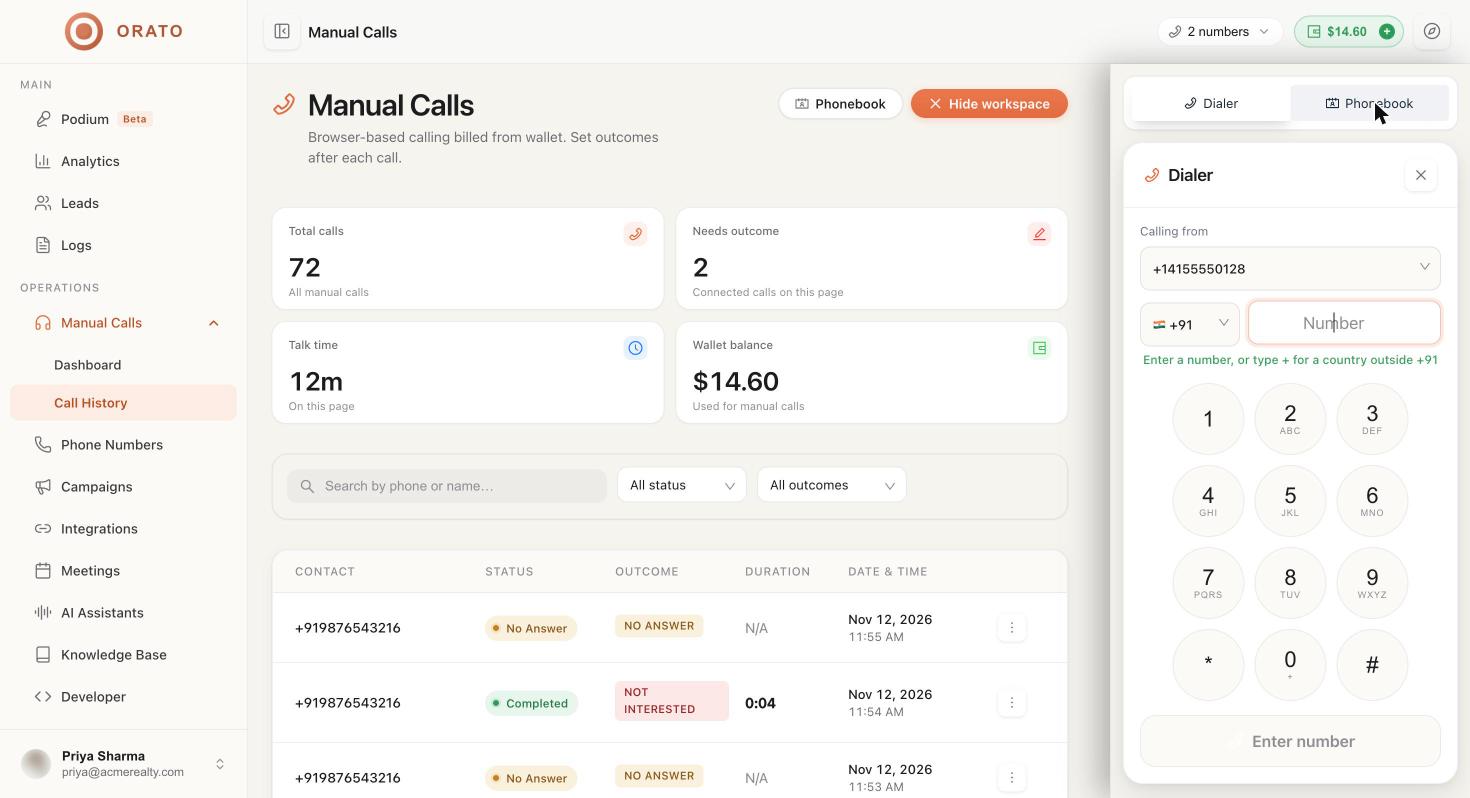
Go to Manual Calls → Call History and click Open dialer, or click Open dialer under Quick actions on the manual calls dashboard. The calling workspace opens on the right with two tabs: Dialer and Phonebook.
2
Choose a caller ID
In Calling from, pick which of your numbers the call comes from.
3
Enter the number
Pick the country code (for example +91) and type the number, or use the keypad. To call another country, type
+ and the full international number.4
Call
Start the call and talk through your computer’s microphone and speakers.
5
Set the outcome
When the call ends, Orato asks How did this call go? Choose an outcome and click Save outcome. You can also Redial or Skip for now.
Call from the phonebook
The Phonebook tab lists every contact from your lead lists (for example, 446 contacts available), with a call button on each.- Search by name or phone number.
- Filter by list (All Batches) and by Status.
- Sort by name (Name (A-Z)).
Call outcomes
Label every connected call so your reports stay accurate.
Calls that still need a label show SET OUTCOME in the Outcome column. Click it to choose one.
Call History
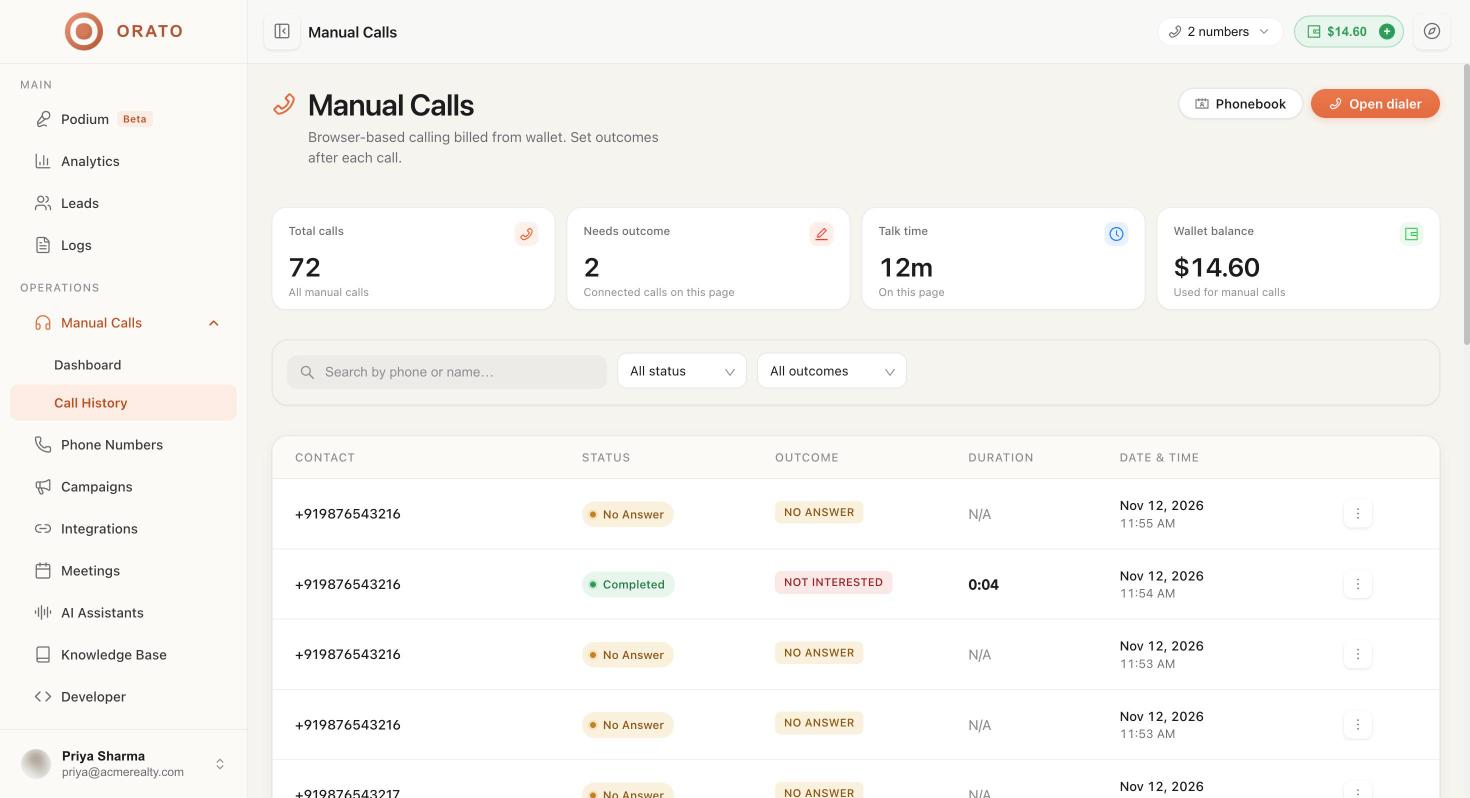
Summary cards
The call list
Each row shows Contact, Status, Outcome, Duration, and Date & time. Search by phone or name, and filter by:- Status: Completed, In progress, Failed, No answer
- Outcome: Qualified, Not interested, Callback, No answer, Voicemail, Failed, Transferred
Manual calls dashboard